


How to Join your device to an Active Directory(AD) Domain
Part 1: To join a domain, you have to make a registry change first:
- Plug in a Windows USB Keyboard to the Blue colored USB ports, press “Ctrl+Alt+Del”, and click Sign Out, Go to ZoomAdmin with Password “Zoom1234
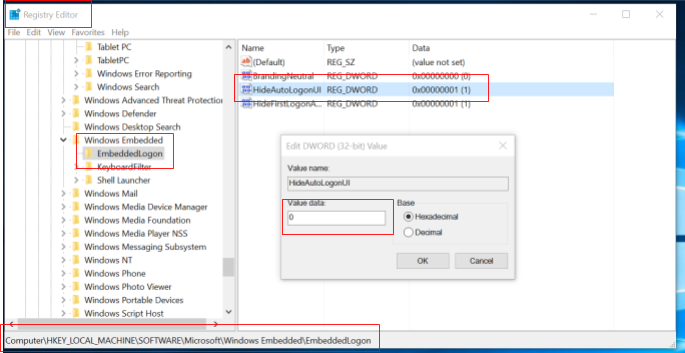
- Go to Registry Editor, under
Computer\HKEY_LOCAL_MACHINE\SOFTWARE\Microsoft\Windows Embedded\EmbeddedLogon
Change value from 1 to 0 for HideAutoLogonUI option will prevent the black screen from joining the domain.
Part 2: To join a computer to a domain
- On the Start screen, type Control Panel, and then press ENTER.
- Navigate to System and Security, and then click System.
- Under Computer name, domain, and workgroup settings, click Change settings.
- On the Computer Name tab, click Change.
- Under Member of, click Domain, type the name of the domain that you wish this computer to join, and then click OK.
- Click OK, and then restart the computer.
If you have additional questions or need to contact DTEN Support, please refer to this DTEN Knowledge Base article for more details: HERE.
Still need help?
Open an Orbit ticket — your device details are filled in for you.
Was this article helpful?
Thanks for the feedback.