


How to configure RS232 Serial Port Unit for D7 Series 1
- Download the Serial Port Debug Assistant
- Connect the serial line (EG:9 PIN). For the first time use, you need to install the USB driver. Otherwise, Pin 2 is TXD; Pin 3 is RXD.
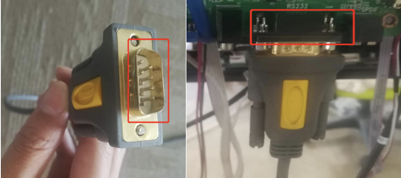
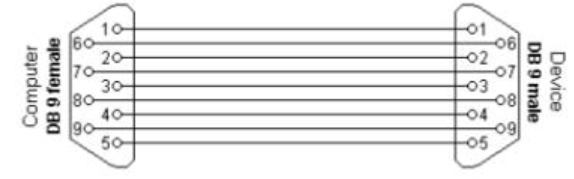
- Below are the Serial Port Configuration settings.
| Setting name | Value |
| Baud Rate | 115200 |
| Data Bits | 8 |
| Stop Bits | 1 |
| Check Bit | None |
1. Next, go to the Device Manager, right-clickto view theproperties and view the Port Settings
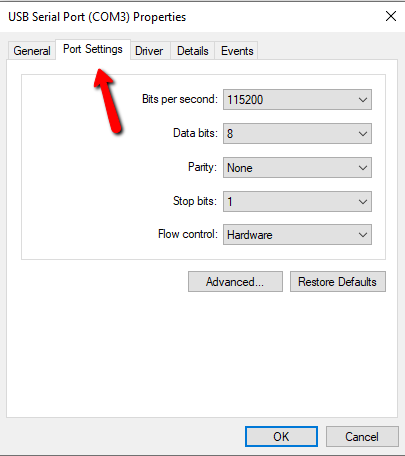
2. Enter the Serial Port Configuration settings (above) and click OK
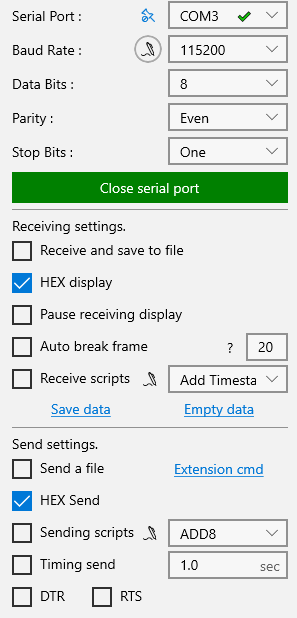
1. Open the Serial Port Debug Assistant, fill out the Serial Port, Baud Rate, Data Bits and Stop bits
2. Check HEX display under both, Receive settings and Send settings
3. Open the Serial port
4. Copy & Paste any of the codes from the table below into the empty field and click the “Send” button.
| Discrete Codes (v1.3.4) | |
| Source Select PC (ZOOM) | FE 60 00 24 00 AA |
| Source Select VGA | FE 60 00 21 00 AA |
| Source Select HDMI 1 | FE 60 00 23 00 AA |
| Source Select HDMI 2 | FE 60 00 43 00 AA |
| Source Select DP | FE 60 00 63 00 AA |
| Volume Up | 99 01 17 01 E8 AA |
| Volume Down | 99 01 18 01 E7 AA |
| Audio Mute On | 99 01 02 01 FD AA |
| Audio Mute Off | 99 01 02 01 FD AA |
| Display On | 99 A2 01 01 27 AA AA AA |
| Display Off | 99 01 05 01 FA AA |
If you have additional questions or need to contact DTEN Support, please refer to this DTEN Knowledge Base article for more details: HERE.
Still need help?
Open an Orbit ticket — your device details are filled in for you.
Was this article helpful?
Thanks for the feedback.