


How to Change Languages for DTEN ON, ME PRO, and ME Systems
OVERVIEW
This article will describe how to change the language on the DTEN ON 55 and ME & ME Pro systems.
DTEN supports the following languages:
- English
- Japanese
- French
- German
To change the language on the DTEN ON and ME & ME Pro systems, please refer to the following instructions.
There are two ways to access the System Settings screen to change the language on the systems:
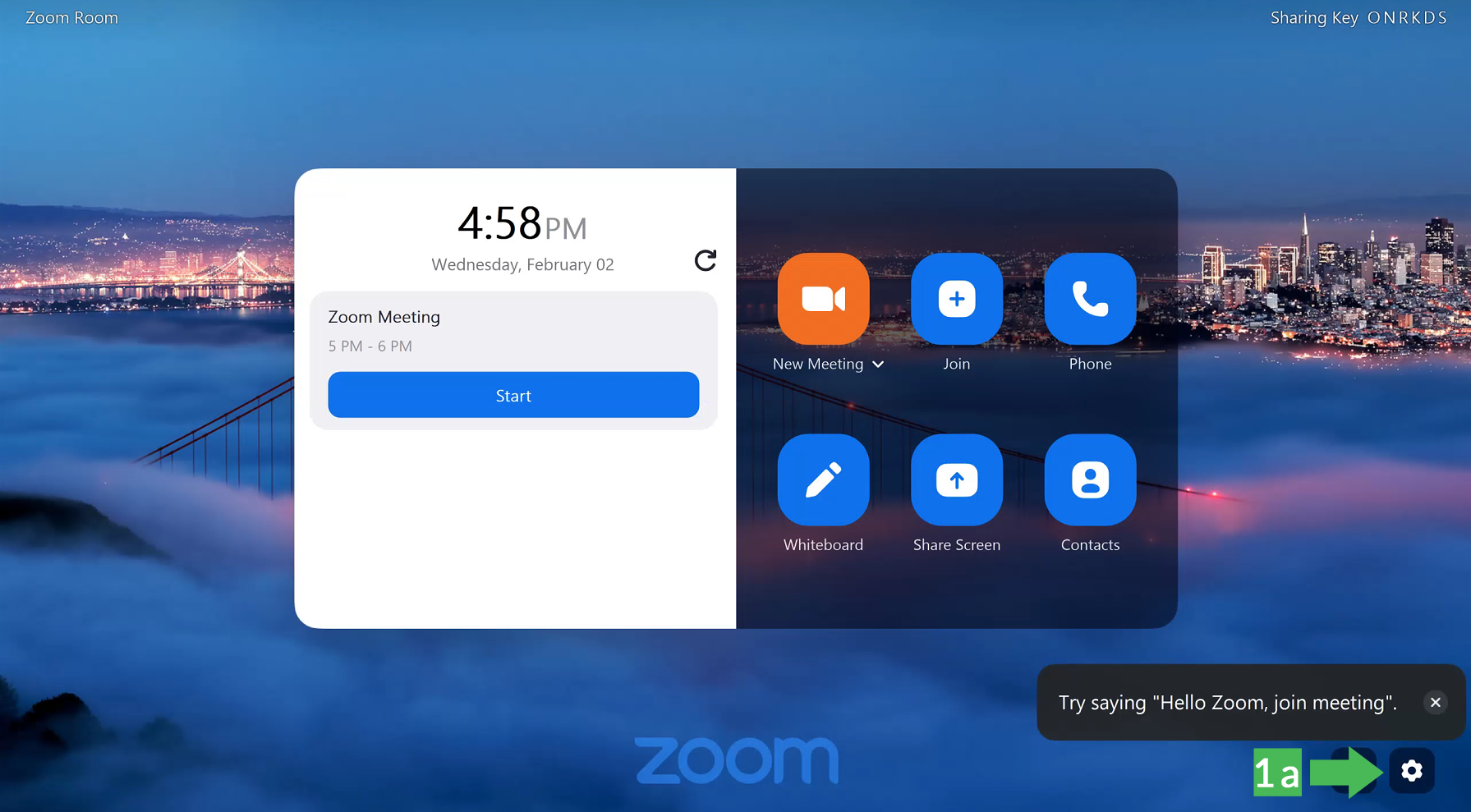
1. From the Zoom Room menu screen:
a. ) Tap the Gear icon on the lower right-hand corner of the screen.
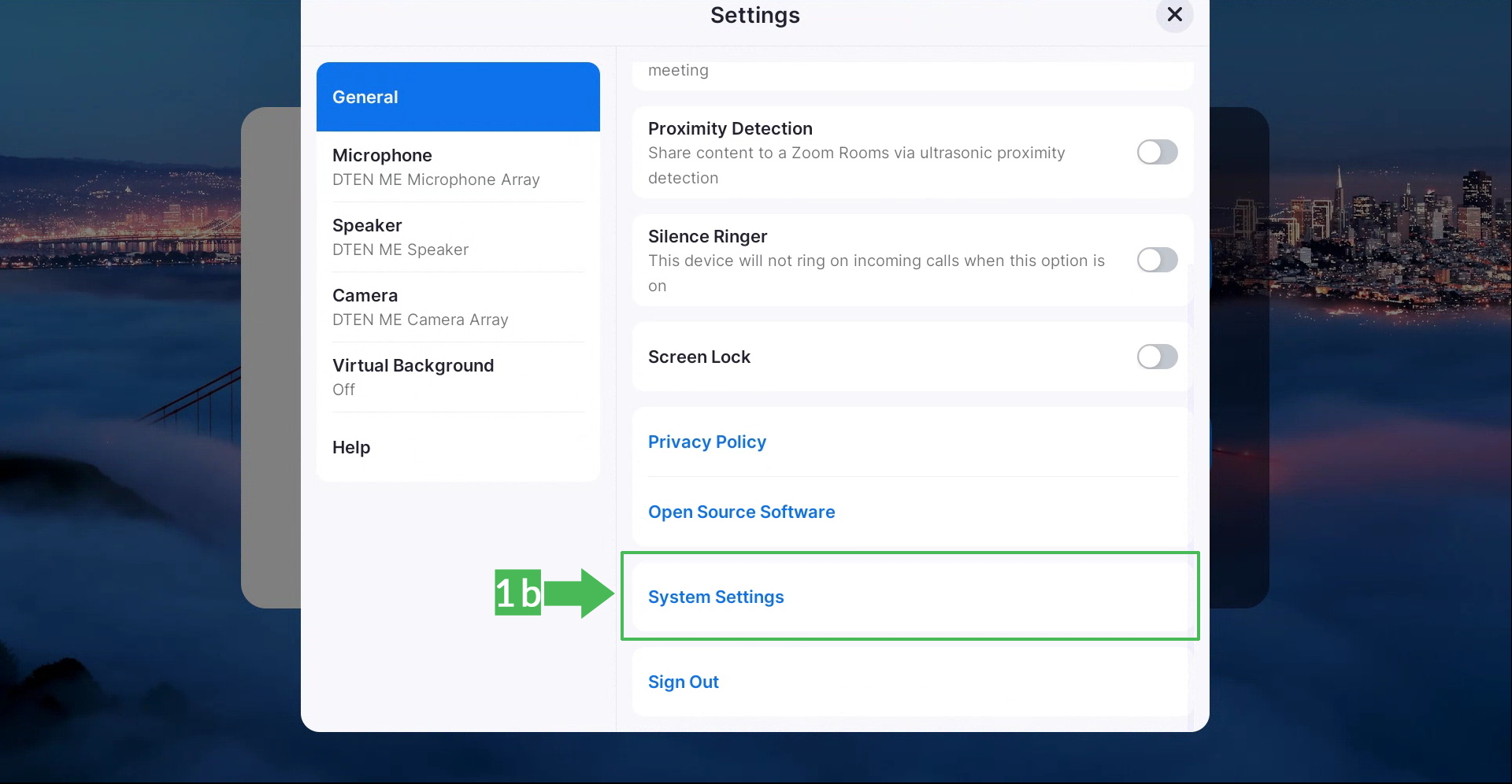
b.) In the Settings screen, scroll the screen up and tap the System Settings option to reach the dashboard
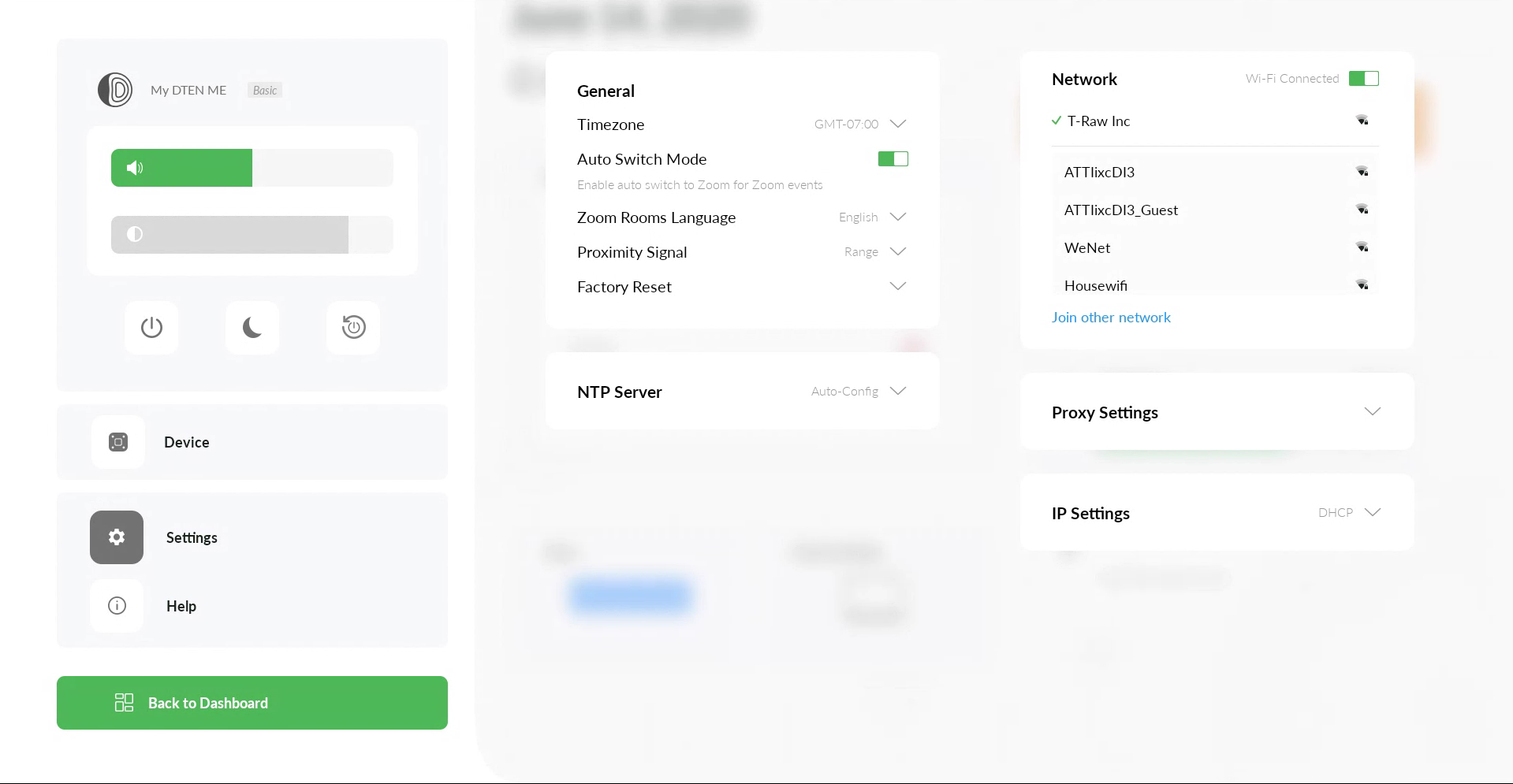
c.) Next, tap the Settings button on the left side of the dashboard
d.) In the General section, tap the down arrow next to the Zoom Rooms Language to select the preferred language and tap the Save button
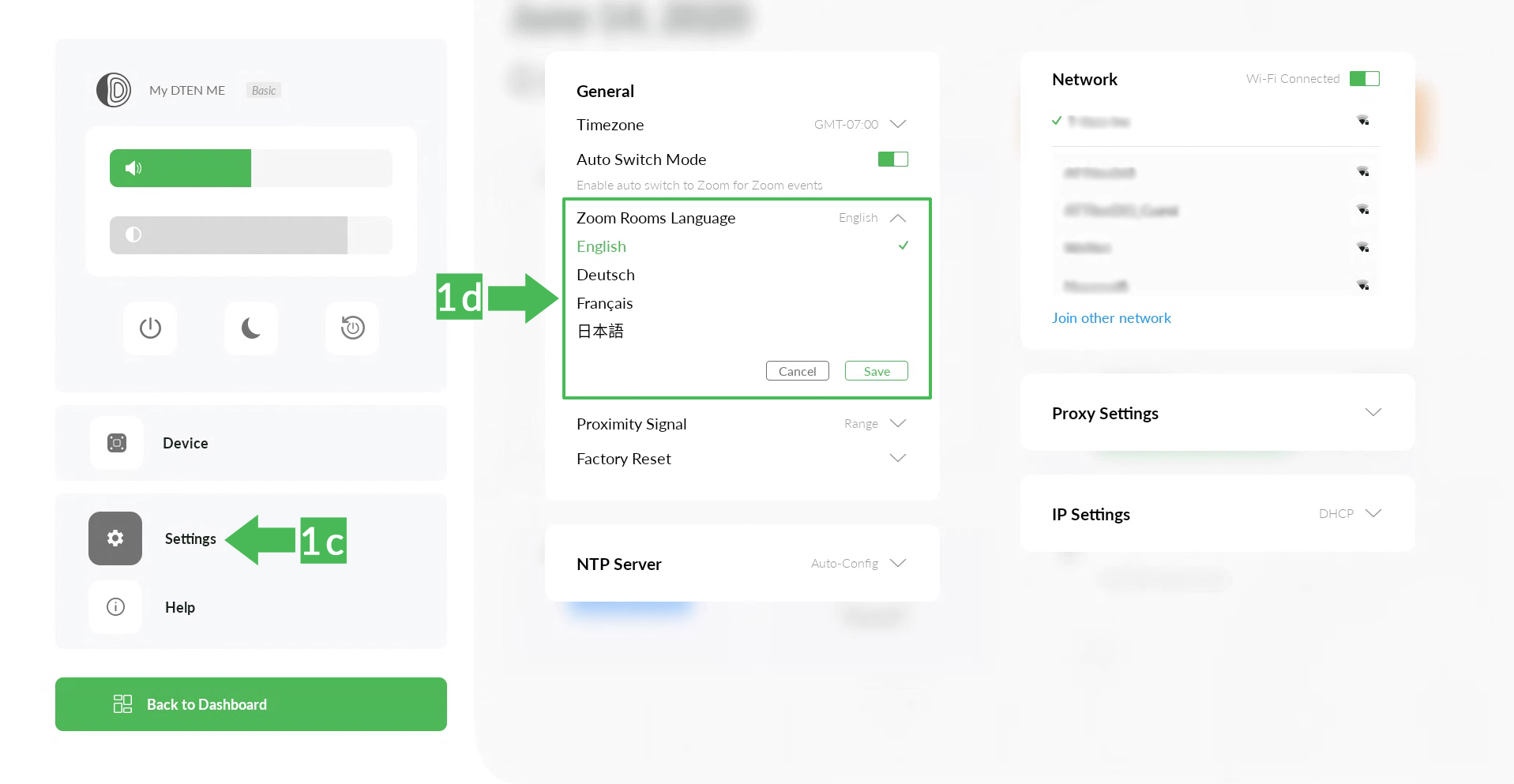
Tap Back to Dashboard, then Zoom Room option and exit Settings menu to get back into Zoom Rooms mode
2. From the back of the display:
a.) Press the Menu button to access the Systems Settings dashboard

b.) Next, tap the Settings button on the left side of the dashboard
c.) In the General section, tap the down arrow next to the Zoom Rooms Language to select the preferred language and tap the Save button
d.) Tap Back to Dashboard, then Zoom Room option to get back into Zoom Rooms mode
If you have additional questions or need to contact DTEN Support, please refer to this DTEN Knowledge Base article for more details: HERE.