


DTEN – How to Force a Factory Reset on DTEN Mate

Overview
This article provides instructions on how to perform a forced factory reset when the DTEN Mate device is unresponsive.
Supporting Products
- DTEN Mate (WiFi & PoE)
Solution:
How to Perform a Forced Factory Reset:
- Locate the Reset Button: Find the small pinhole on the back of your DTEN device, which is the reset button.
- Press and Hold: Insert a small object (like a paperclip) into the pinhole and press and hold the reset button.
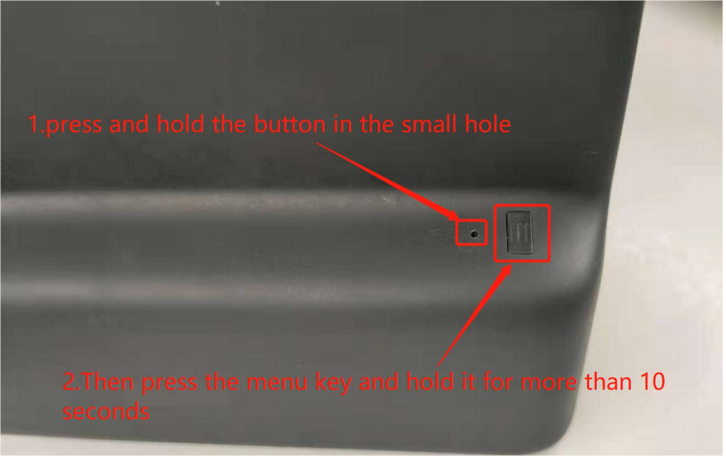
- Press and Hold the Menu Button: While still holding the reset button, press and hold the physical menu button on the device.
- Release Buttons: Continue holding both buttons until the DTEN logo appears on the screen. Then, release both buttons.
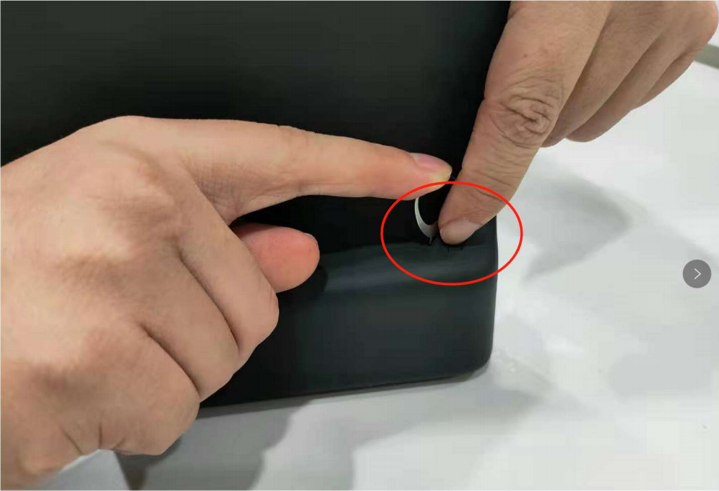
- Wait for Reset: The device will now reboot and begin the factory reset process.
Important Note:
- Re-Pairing: After a factory reset, you may need to re-pair your DTEN device with other devices or systems.
If you encounter any problems during the forced factory reset process, please contact DTEN support team [How to contact DTEN Support] for further assistance.
Still need help?
Open an Orbit ticket — your device details are filled in for you.
Was this article helpful?
Thanks for the feedback.