


How to Remove a User from DTEN Orbit

Overview
Organizations can efficiently manage user access and permissions by utilizing Orbit’s “Remove a User” feature, particularly in user departure or role adjustments. This feature provides a streamlined process for revoking access and managing user roles within the Orbit. By removing a user, their permissions and privileges will be revoked, ensuring data security and maintaining the integrity of the organization’s user ecosystem.
Use Case
One of the key use cases for the “Remove a User” feature is when a user departs from the organization or undergoes a role change. In such situations, managing their access and permissions effectively is essential. Administrators can easily remove the user from the system, ensuring they can no longer access sensitive data or functionalities. This helps maintain data security and compliance.
Setup Instructions Step-by-step
Remove a Member
- User Management → Users → Deactivate the user
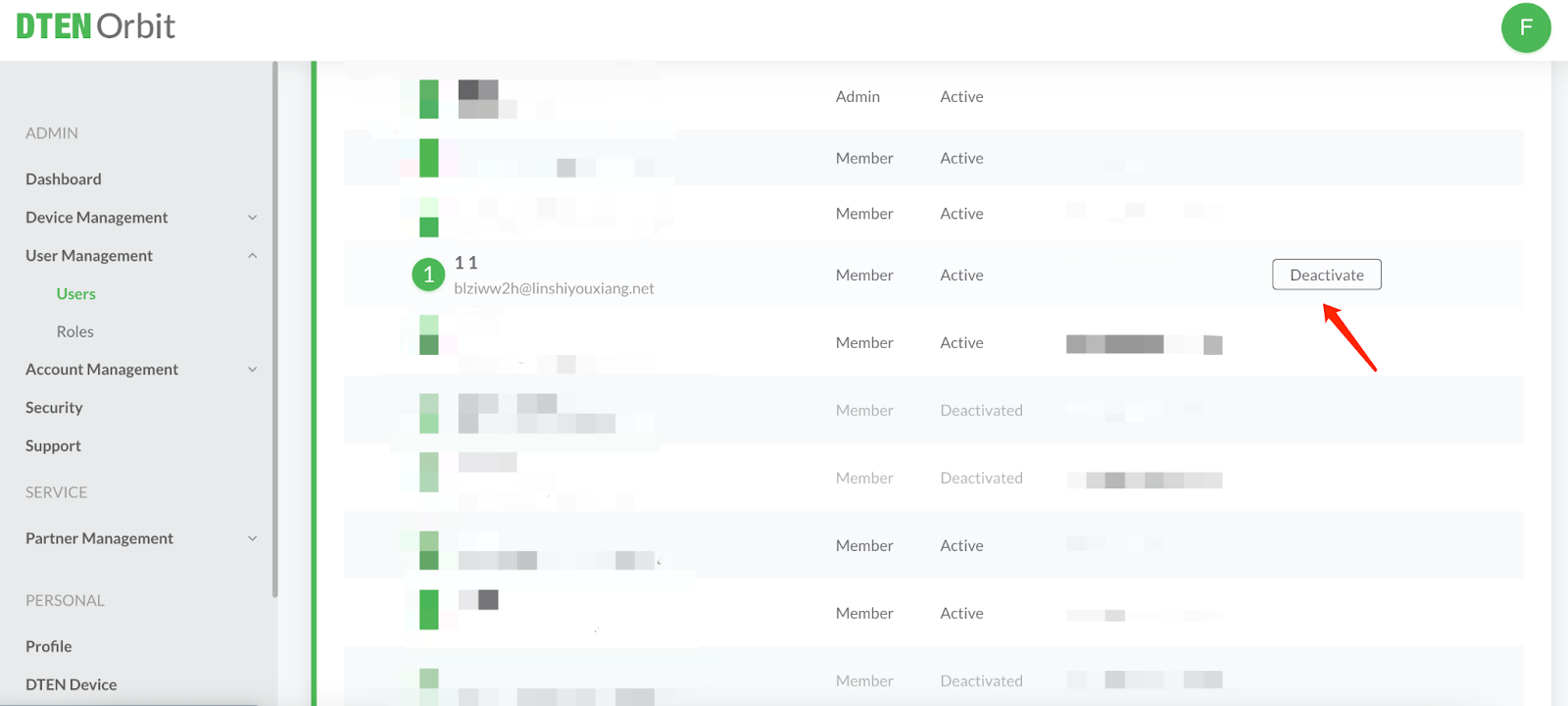
- User Management → Users → Confirm to deactivate the user
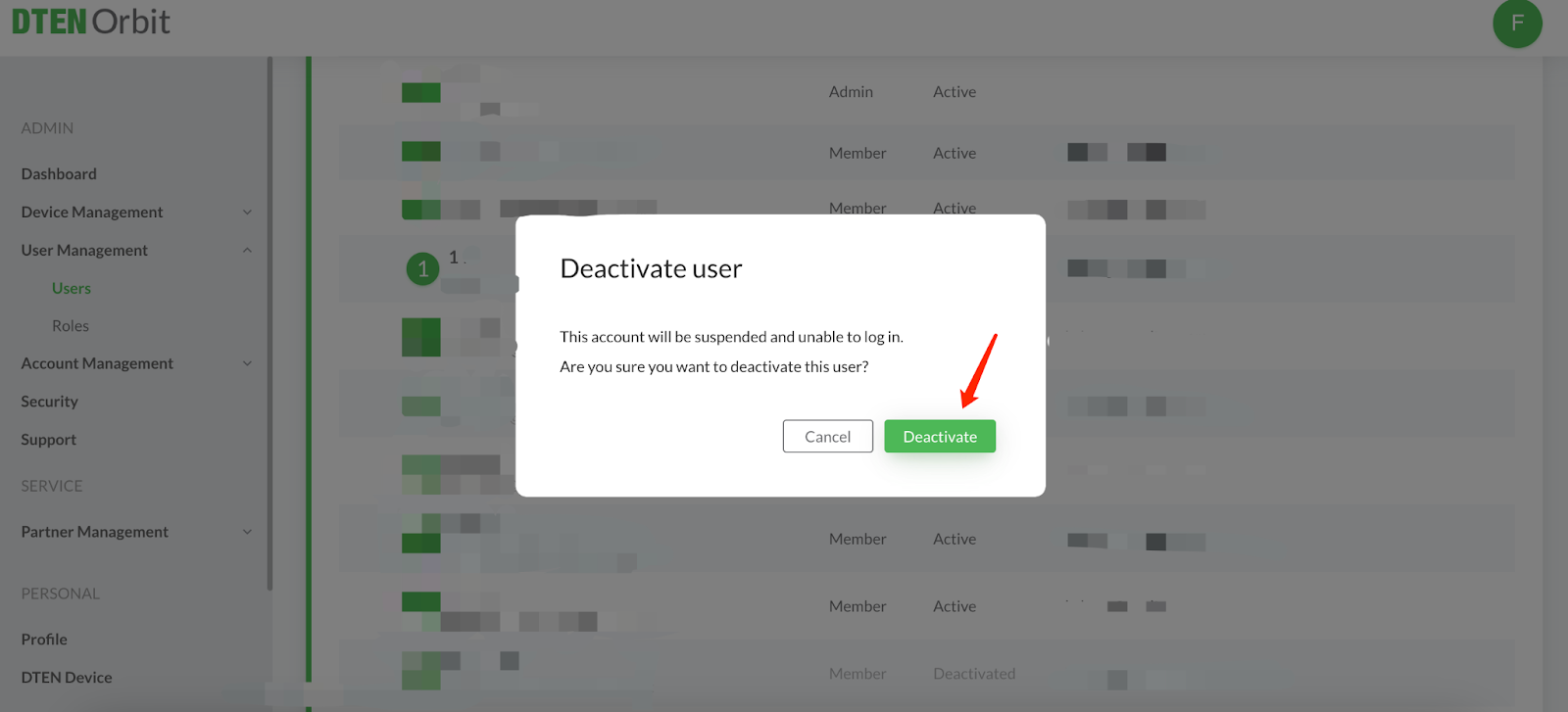
- User Management → Users → Remove the user
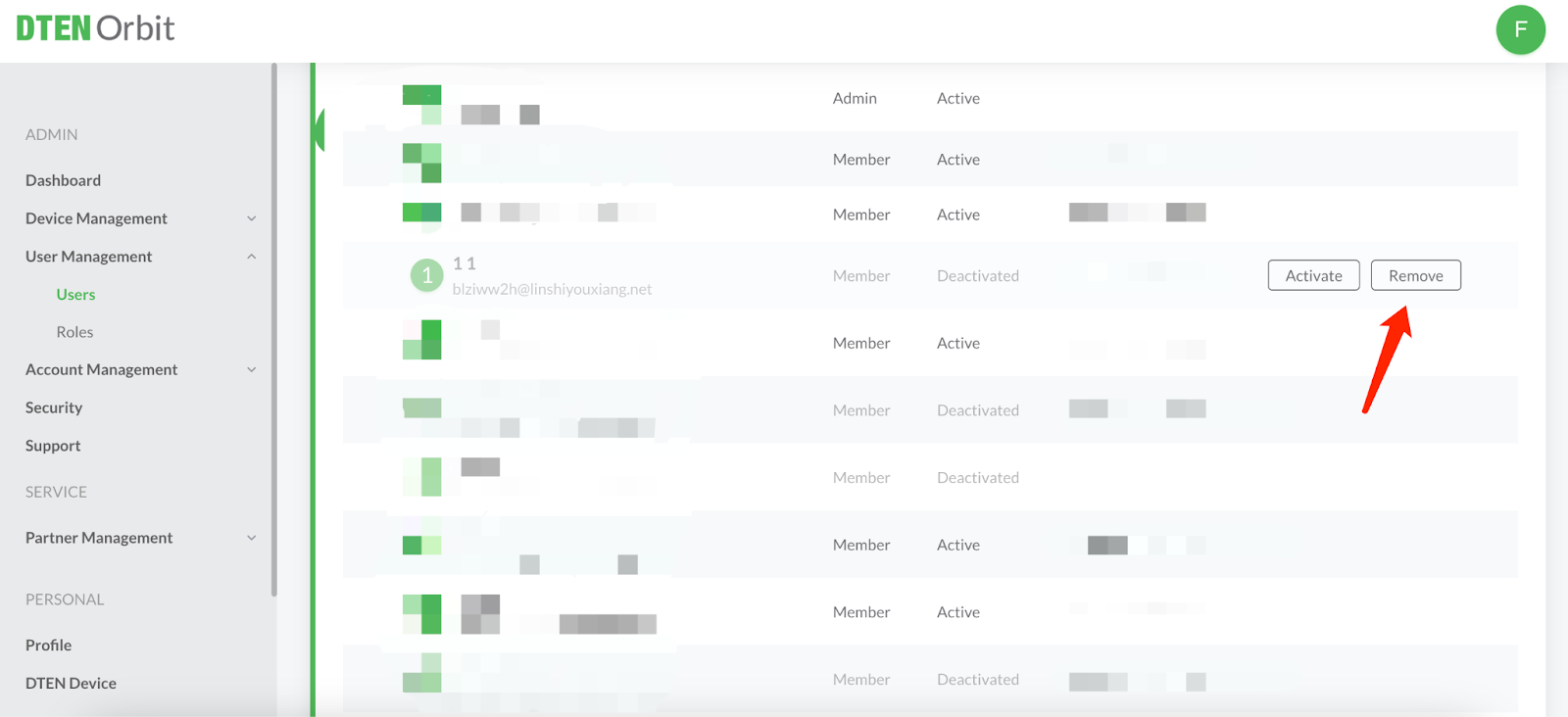
- Done! Now, the user has been removed from your Orbit account.
Remove an Admin
- User Management → Roles → Edit the Admin
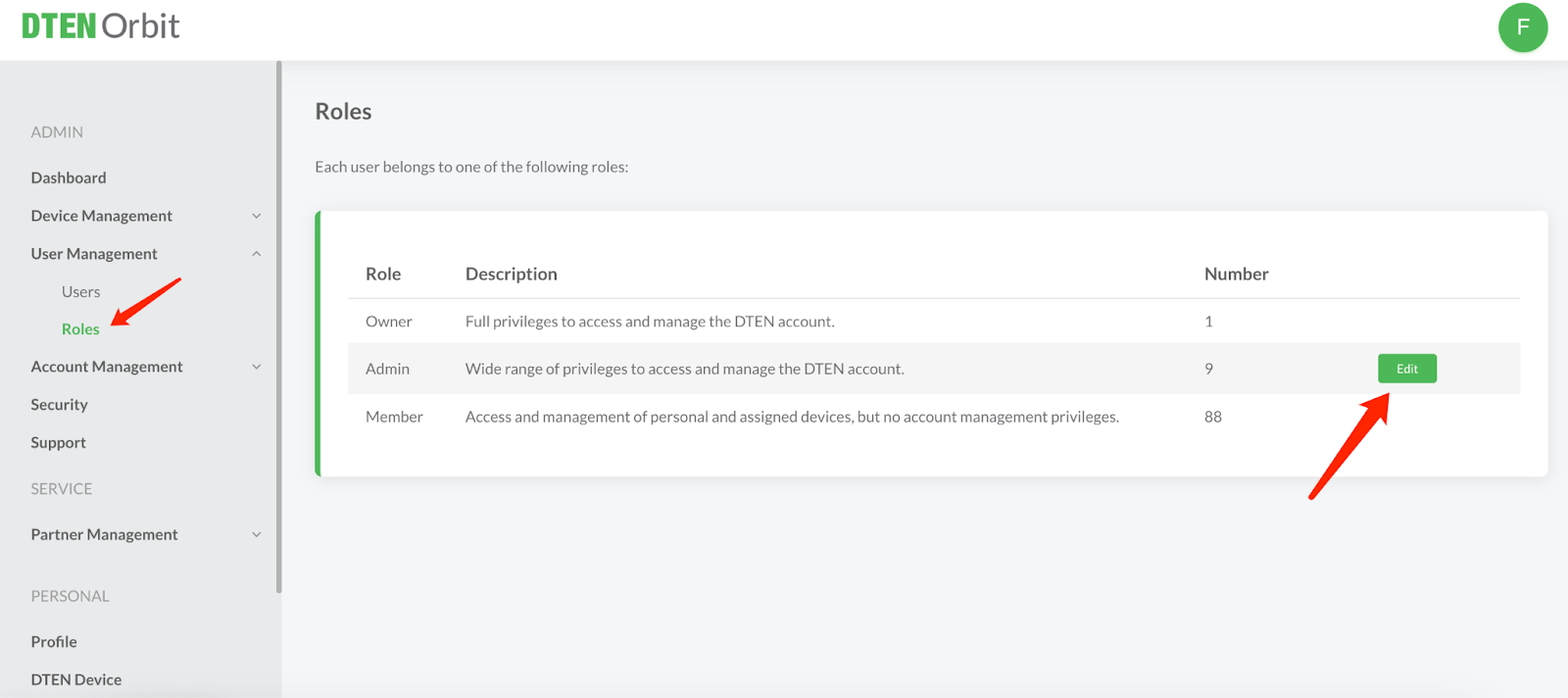
- User Management → Roles → Admin → Remove the Admin who you want to remove
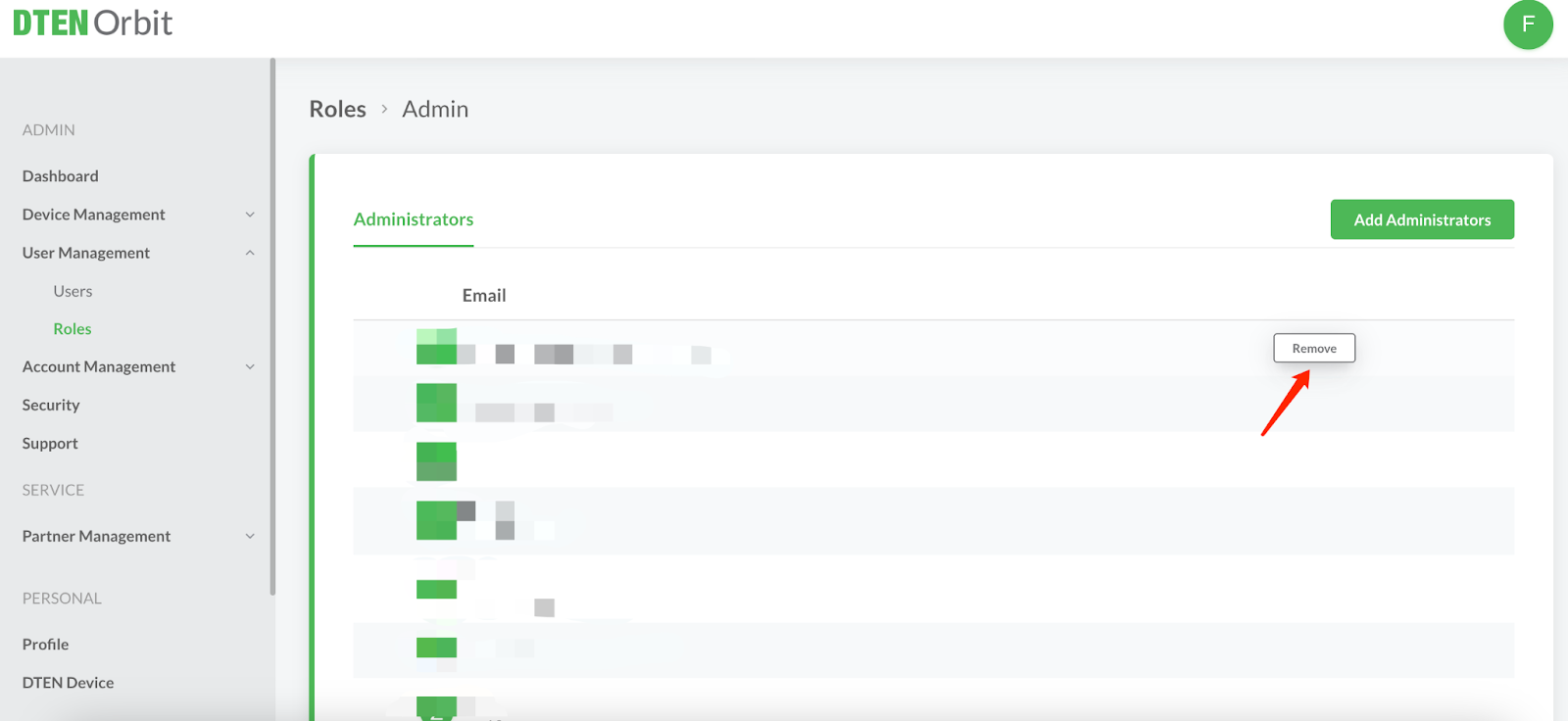
- Back to User Management → Users, follow steps 1-4 in Remove a Member.
If you have additional questions or need to contact DTEN Support, please refer to this DTEN Knowledge Base article for more details: HERE.