


Display meeting list on TV
Overview
Zoom Rooms can display all upcoming meeting on your TV, monitor or projector display.
This article covers:
- Configuring all Zoom Rooms to Display Meeting List on TV
- Configuring a Set of Zoom Rooms to Display Meeting List on TV
Prerequisites
- Meetings must be scheduled for the same day
- Schedule using Google or Microsoft Exchange calendar integration
Configuring all Zoom Rooms to Display Meeting List on TV
- Sign in to the Zoom web portal.
- Click Room Management > Zoom Rooms.
- Click Account Settings.

- Click the Meeting tab.
- Navigate to the Display meeting list on TV option and verify that the setting is enabled.

If the setting is disabled, click the Status toggle to enable it. If a verification dialog displays, choose Turn On to verify the change.
Configuring a Set of Zoom Rooms to Display Meeting List on TV
- Sign in to the Zoom web portal.
- Click Room Management > Zoom Rooms.
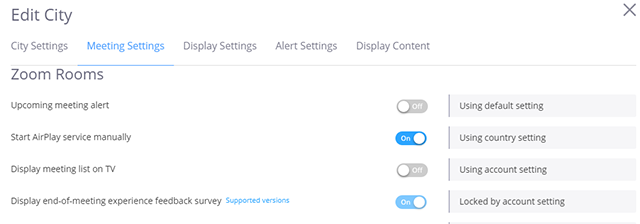
- Go to Meeting Settings and enable the option Display meeting list on TV.
- Click Save Changes
If you have additional questions or need to contact DTEN Support, please refer to this DTEN Knowledge Base article for more details: HERE.
Still need help?
Open an Orbit ticket — your device details are filled in for you.
Was this article helpful?
Thanks for the feedback.