


DTEN D7 Series 2 55″ & 75″ Power Saving Management

Overview
The power-saving management system is designed to optimize DTEN device energy use, promoting both environmental sustainability and screen longevity . Through Orbit, users can manage it. This feature not only reduces energy costs but also aligns with eco-friendly practices.
The following sections will guide you through the steps to activate and customize these power-saving modes to take full advantage of these benefits.
Supporting Product
- DTEN D7 Series 2 55” and 75” Windows with DTEN v2.11 or above.
Designed Use Case
The IT administrator aims to configure DTEN devices to use less power during inactivity yet become active when individuals enter the room, supporting the organization’s goals for environmental sustainability, and energy cost savings.
Setup Instructions
Prerequisites
Account owner, or admin with device management setting permissions to Orbit.
Step-by-step instructions
Configuring Power saving Mode
In Power saving Mode, the device’s screen will be turned off.
To activate and customize this mode in Orbit:
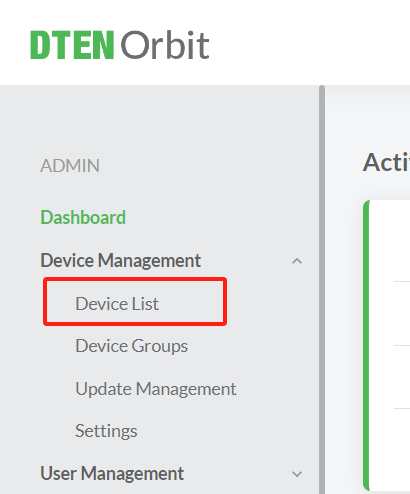
- Log in to your Orbit account, go to Device List
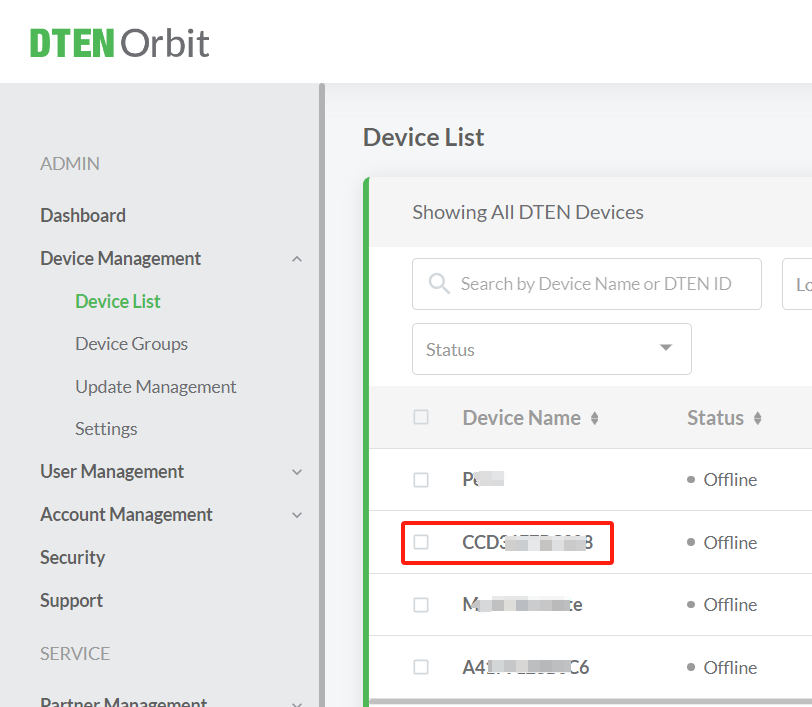
- Find the device which you want to config and click the item
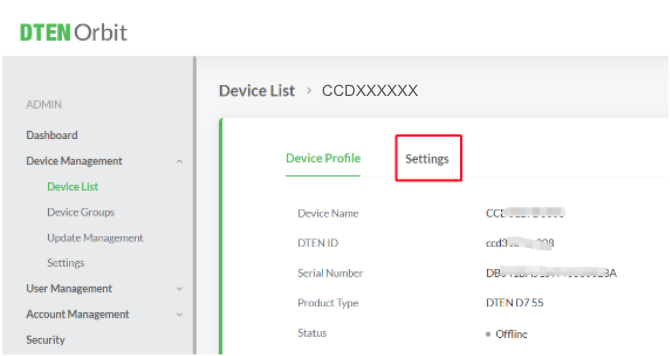
- Select the Settings
- Scroll the bottom of the screen and find the Power Saving Management
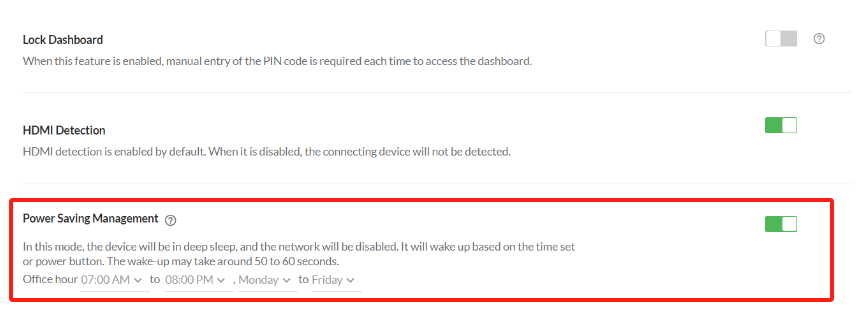
- Configure it based on your needs:
By Work Schedule: Define your typical working hours, and the device will automatically enter the Power Saving Mode outside working hours and resume at the start of the next workday.
Q & A
Q: What is the relationship between DTEN’s power-saving mode and Device Operation Time
configured on the Zoom Portal?
A: DTEN’s power-saving mode and Device Operation Time on the Zoom Portal are independent of each other. We recommend using only DTEN’s power-saving mode. However, if you choose to use the Zoom Portal’s power-saving mode, it’s best to disable DTEN’s power-saving mode to avoid any confusion that may arise from having both DTEN’s power-saving mode and the Zoom Portal’s Device Operation Time enabled. If the DTEN option is used, then it should be turned off in Zoom’s Portal.
Known Issues
None
If you have additional questions or need to contact DTEN Support, please refer to this DTEN Knowledge Base article for more details: HERE.