


DTEN – Enable Windows update Steps for D7X and D7 Systems

Overview
This article will provide instructions on how to overcome issues with Windows Update being disabled or not functioning properly on DTEN systems with Windows operating systems. This can prevent the installation of important updates and security patches.
Supporting Products
- DTEN D7 X
- DTEN D7
Solution:
Steps to Enable Windows Update
Follow these steps to enable Windows Update on your device:
Step 1: Access ZoomAdmin
- Open ZR: Ensure you are logged in under the ZoomAdmin account.
- Sign In: Enter your credentials to access ZR.
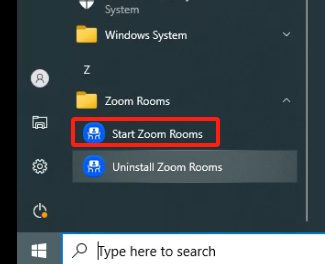
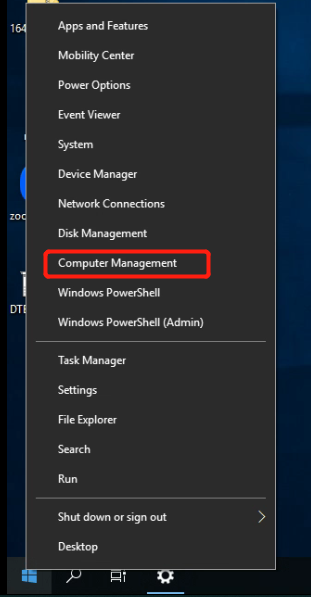
Step 2: Open Computer Management
- Right-Click Menu: Right-click on the desktop or the start menu.
- Select Computer Management: From the context menu, choose Computer Management.
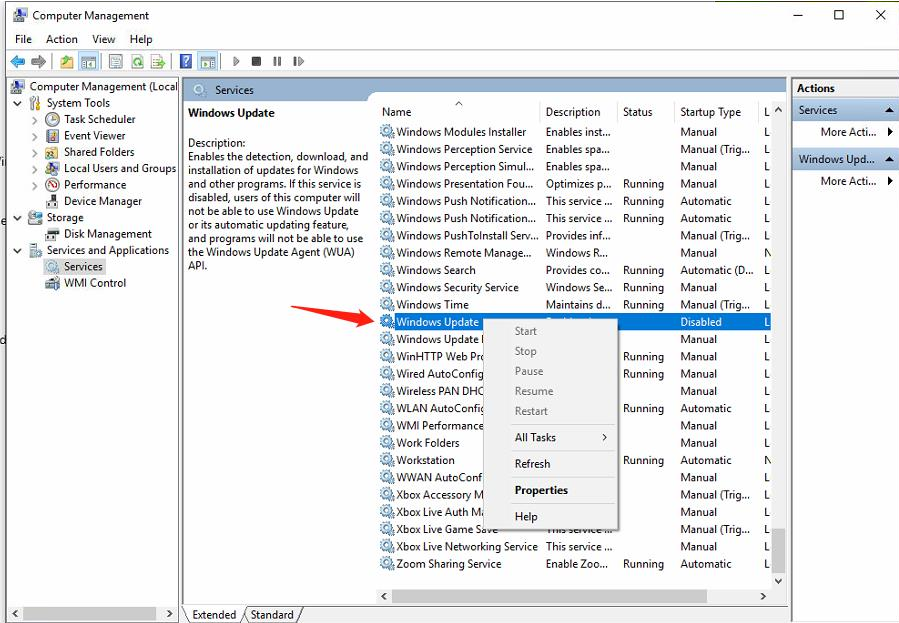
Step 3: Navigate to Windows Update Service
- Locate Services: In the Computer Management window, navigate to:
- Services and Applications
- Services
- Find Windows Update and double-click on it.
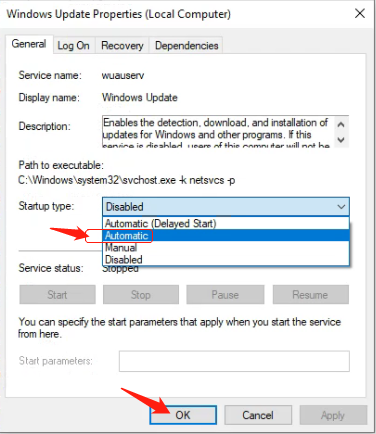
Step 4: Configure Windows Update
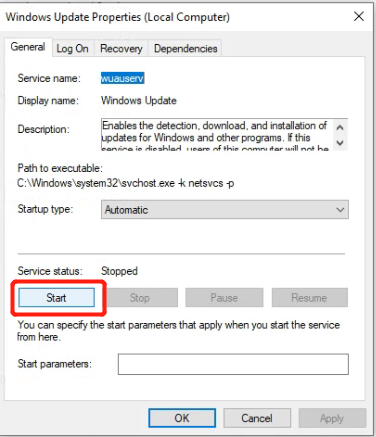
- Set Startup Type: In the Windows Update properties:
- Change the Startup type to Automatic.
- Click OK to save changes.
- Start the Service: Click the Start button to enable the service (note that it may become disabled after a reboot).
Step 5: Verify Windows Update Status
- Check if Running: Ensure that the Windows Update service is running.

Step 6: Check for Updates
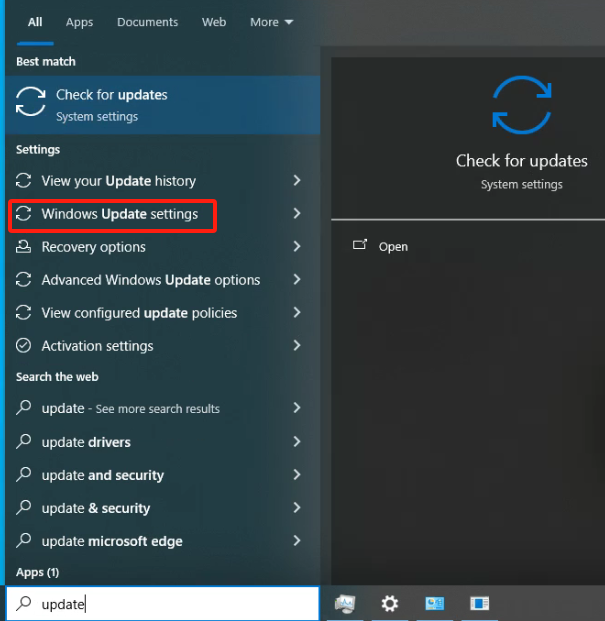
- Search Windows Update Settings: Open the settings for Windows Update.
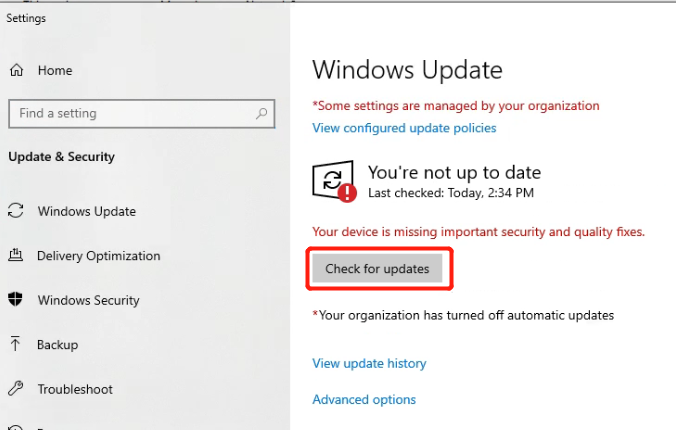
- Click on Check for Updates: Initiate a search for any available updates.
Step 7: Restart the Device
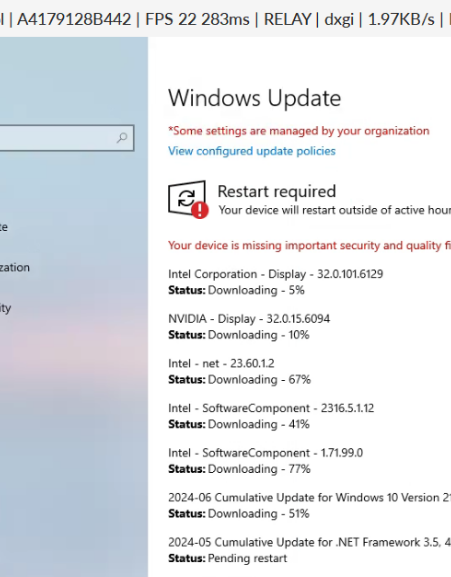
- Prompt for Restart: If prompted with ‘Restart now’, click it.
- Completion: Your device will restart, and new patches will be applied.
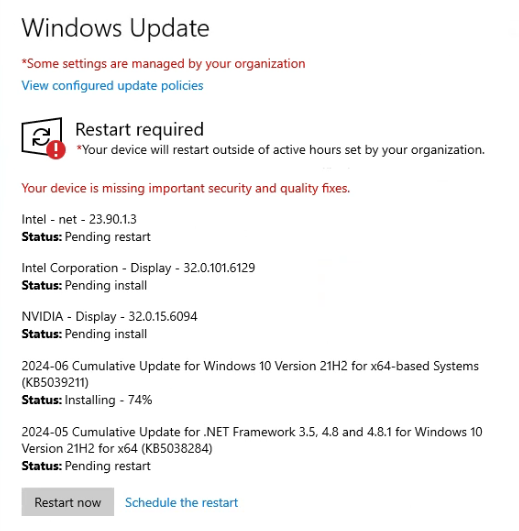
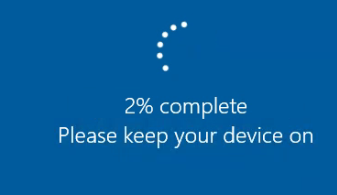
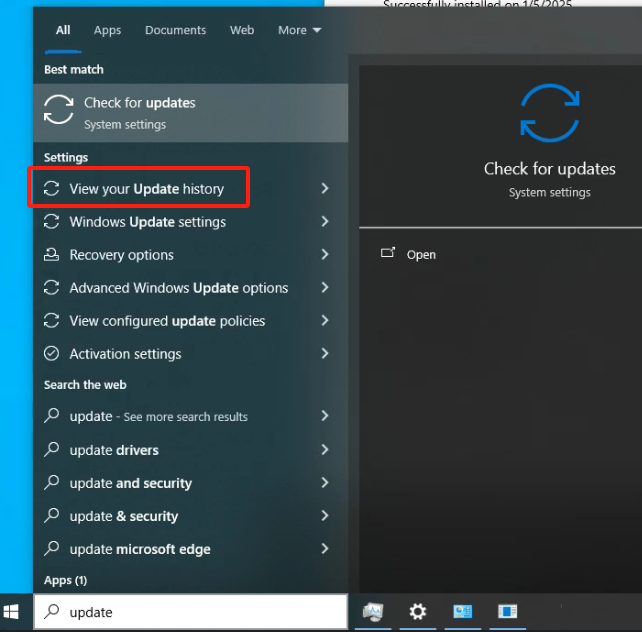
Step 8: View your Update history
Search View your Update history,click it
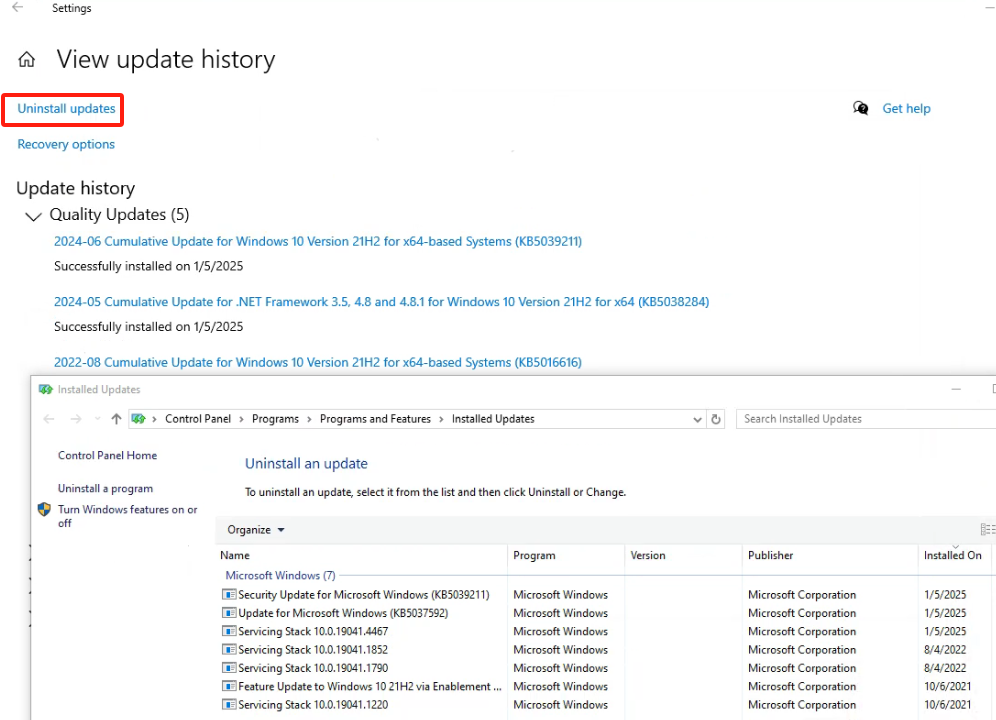
Conclusion
Following these steps should enable Windows Update and allow your device to receive updates properly.
If you encounter any problems during the forced factory reset process, please contact DTEN support team [How to contact DTEN Support] for further assistance.
Still need help?
Open an Orbit ticket — your device details are filled in for you.
Was this article helpful?
Thanks for the feedback.