


DTEN GO with DTEN Mate – Zoom Room App v5.11.0 Critical Camera Issues
Overview
IMPORTANT! Please be advised and take immediate action (as recommended further below):
It has been determined that the new Zoom Room App version 5.11.0 update, released by Zoom on June 26, 2022, will render DTEN GO camera undetectable, and thereby cancel it’s functionality, making it inaccessible for use in any capacity.
Zoom and DTEN engineers are investigating the root cause and working to provide a fix for this issue in the next DTEN GO firmware update.
Note: This issue is currently not found on other Android devices.
Recommendations for Camera Issue Resolution
To restore the camera functionality of your DTEN Go device(s), please complete the following steps:
For DTEN GO Devices Affected By Zoom Firmware Update V.5.11.0.
The very first thing you must do is disable the Auto-update feature in both in Zoom and in Orbit (if you have an account) in order to prevent the Zoom Firmware v.5.11.0 update from downloading again.
Afterwards, you must perform a Factory Reset on your DTEN device(s), especially if they are mission-critical for your daily operations and you cannot wait for the fix, which will be provided in the very near future. A Factory Reset will restore your DTEN device(s) to their out-of-box settings, including time zone selection, network choices (Wi-Fi or Ethernet), pairing of the devices and sharpness level; therefore, you will need to re-select the appropriate options for these settings.
Lastly, you will need to log in to Zoom again. Once you do so, all of the Zoom settings will be restored, as they are saved in your Zoom account.
In Zoom
To disable the Automatic Update feature:
- Log into your Zoom account and select Device Management | Device List | Account Settings (Figure 1, right pane).
- Click the Automatically update OS/Firmware – Zoom Rooms, to switch it off (it will change to gray as shown in Figure 1).
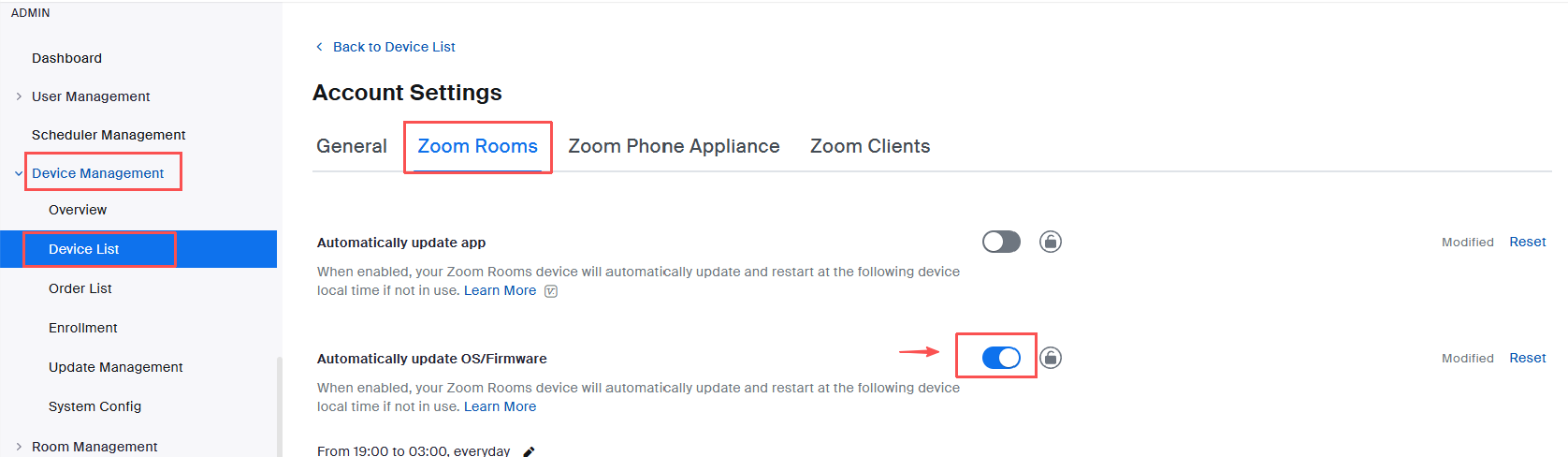 Figure 1. Automatically update OS/Firmware – Zoom Rooms
In Orbit
To disable the Automatic Update feature: (For Orbit account holders only).
- Log in and go to Device Management | Settings (Figure 2, left pane).
- In the Auto-Updates section (Figure 2, right pane), if it is enabled (indicated by a green button
 ), click it to switch the Auto-updates feature off. The button will change to gray as shown (Figure 2, far right).
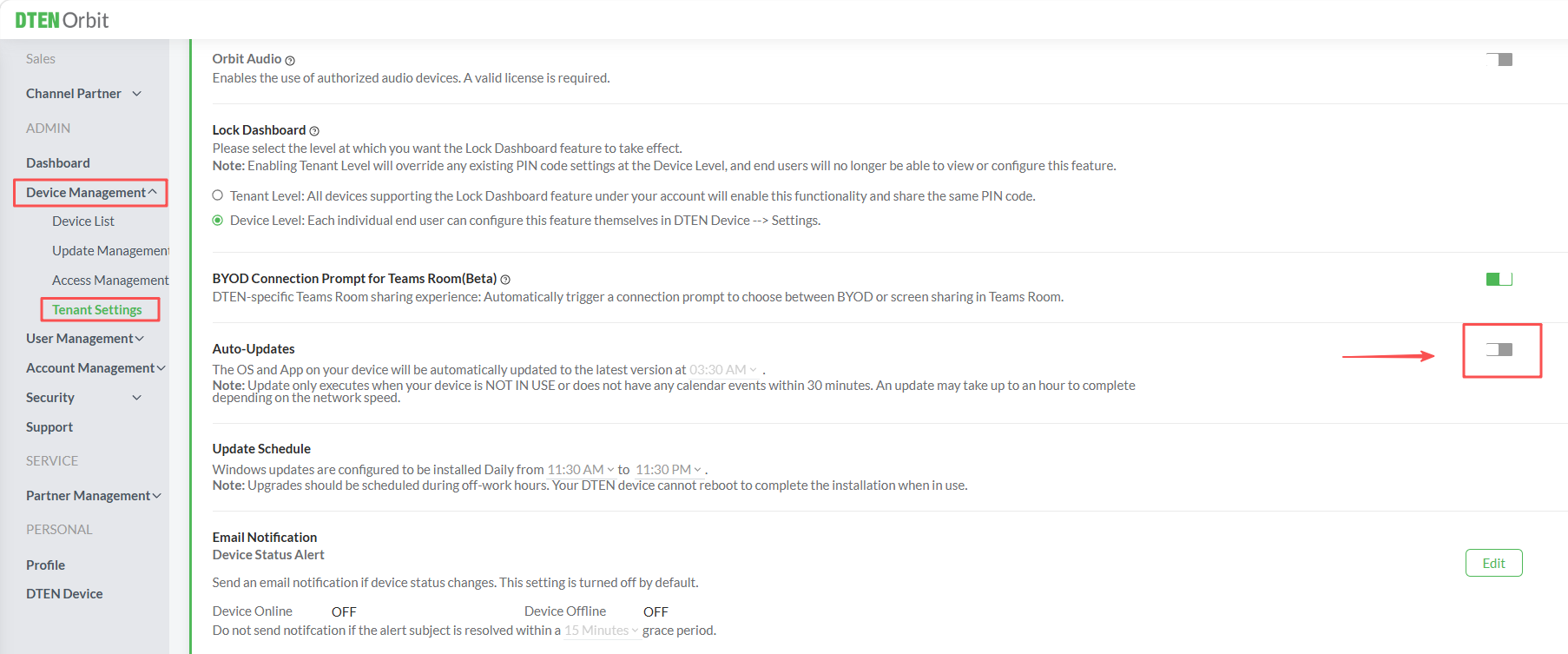
Figure 2. DTEN Orbit Auto Updates setting
Perform DTEN GO Factory Reset
Method 1: The DTEN Mate Menu (Soft Reset)
- Press the DTEN logo (in the upper left corner of the device to access the DTEN Mate menu.
- Go to the Dashboard, then select Factory Reset.
Method 2: The Orbit Device Management GUI (Soft Reset)
- If you have an Orbit account, you may log in and navigate to Device management | Device List | Device ID | Settings
- Click the Factory Reset option.
For DTEN GO Devices Not Yet Affected By Zoom Firmware Update V.5.11.0.
If your DTEN GO devices have not been affected, you will not need to perform a factory reset. But you still must disable the Auto-update feature in both Orbit (if you have an Orbit account) and Zoom in order to prevent the Zoom Firmware v.5.11.0 update from downloading and rendering your DTEN GO camera undetectable.
To do so, follow the instructions provided above, in the sections.
Check Zoom App Version
You may check the current version of the Zoom app that is installed on your device using Zoom or Orbit (for Orbit account holders only):
In Zoom
To check the Zoom app version:
- Log into your Zoom account.
- Select Room Management | Zoom Rooms
- In the filter bar (Figure 3, top), select the All Versions filter.
- Find your DTEN GO device and view the version in the App column (Figure 3).
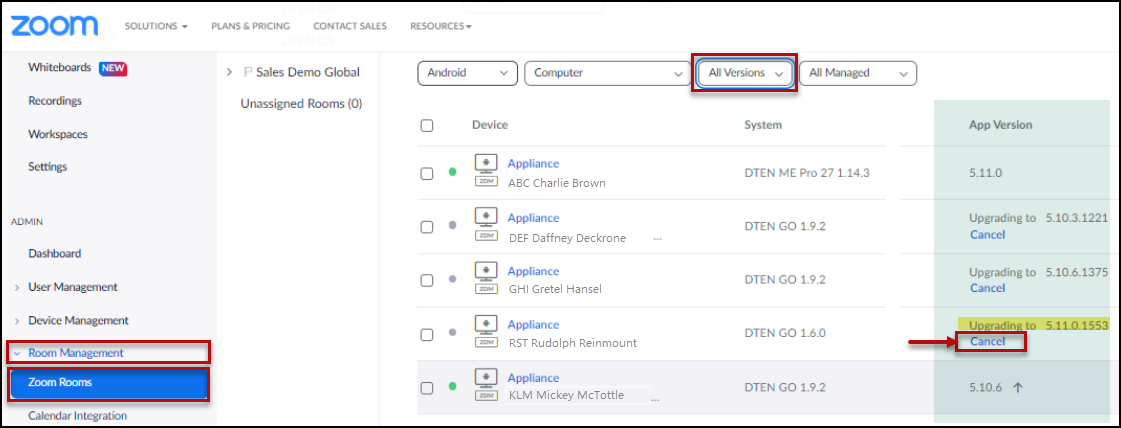
Figure 3. Zoom Room App versions in Zoom.com
In Orbit
To check the Zoom app version:
- If you have an DTEN Orbit account, log in and select DTEN Device (Figure 4, left pane). You will see the Zoom Rooms app version displayed in the right pane.
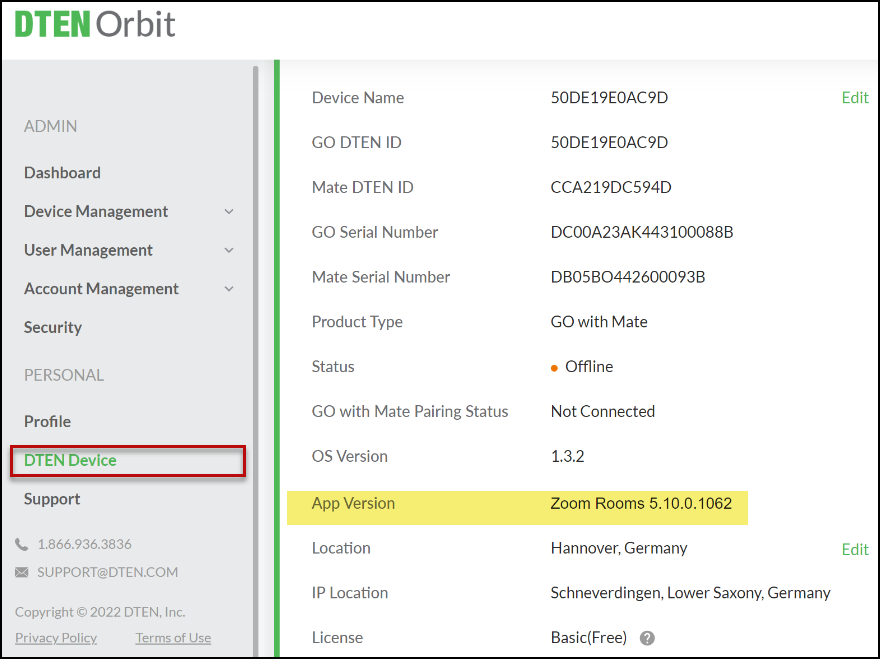
Figure 4. Zoom Room App version in DTEN Orbit
If you have additional questions or need to contact DTEN Support, please refer to this DTEN Knowledge Base article for more details: HERE.