


DTEN D7X Android with Mate Pairing and Configuration
DTEN D7X Android with Mate Pairing and Configuration

Overview
DTEN solution enables seamless pairing and remote control between Mate and D7X Android, enhancing the meeting experience for Zoom and Teams. Users can easily integrate and control D7X Android through Mate, improving efficiency and productivity. The solution optimizes audio, video, and content sharing, providing a seamless collaboration environment. With our solution, users can maximize the potential of both devices, resulting in a productive and seamless meeting experience.
Supporting Product
- DTEN D7X Android 55 & 75
- DTEN Mate
Prerequisite
- DTEN D7X Android v1.5.7 and above
- DTEN Mate v2.1.4 and above
Use Case
Managing and controlling the DTEN D7X Android remotely during Zoom and Teams meetings can be challenging due to limited functionality, causing inconvenience and reducing efficiency. Our solution simplifies this process by enabling seamless pairing and control between the Mate and D7X Android. This integration provides a unified interface for device management, ensuring a smooth and hassle-free meeting experience. By enhancing remote control capabilities, our solution improves collaboration and increases productivity, allowing users to focus more on their meetings and less on technical issues.
Setup Instruction
Step-by-step instructions
If you have purchased both a D7X Android and a Mate, follow these steps to pair them:
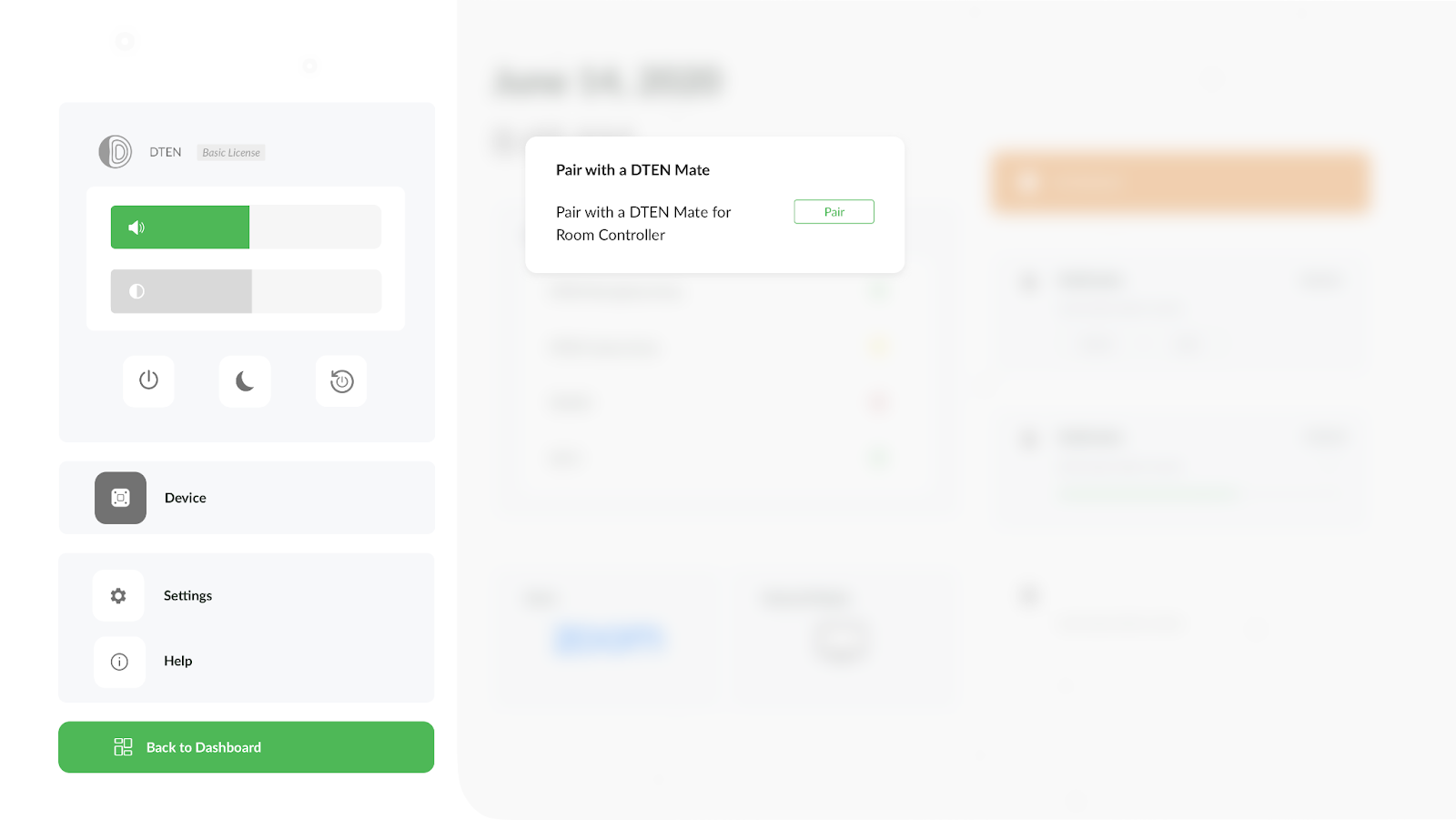
- On the D7X settings interface, tap Device -> “Pair with a DTEN Mate.”
Zoom
Teams
- Scan the QR code or enter the pairing code on the Mate device to establish the connection.
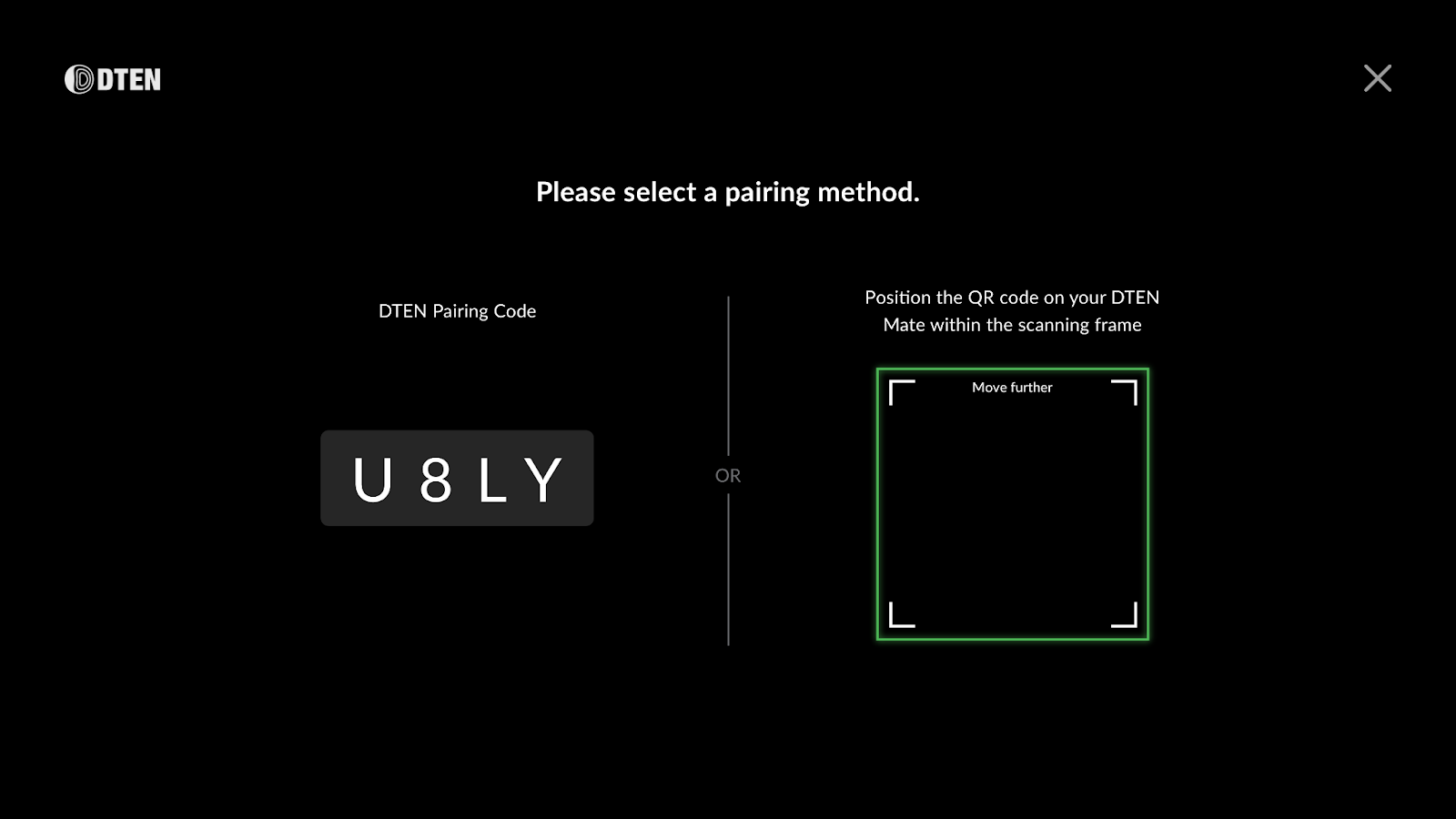
- If the D7X is in Zoom mode, the Mate will automatically install and launch the ZRC application. If the D7X is in Teams mode, the Mate will automatically install and launch the Touch Console application.
- Switching the D7X and Mate between Zoom and Teams, follow these steps:
- To switch from Zoom to Teams:
- Factory reset the D7X, which will automatically reset the Mate as well.
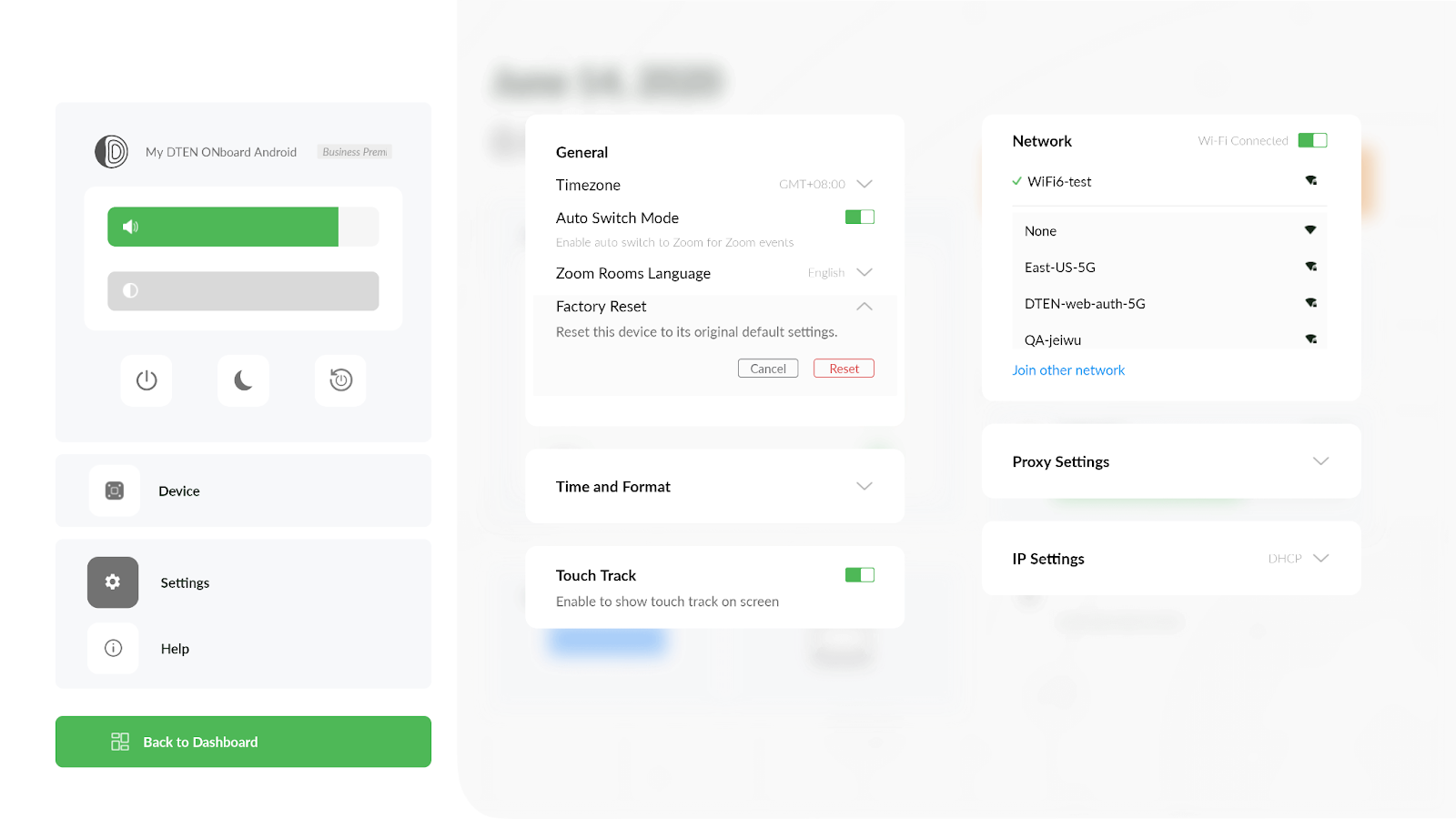
- After pairing the Mate with the D7X again, it automatically switches from ZRC to Teams Touch Console.
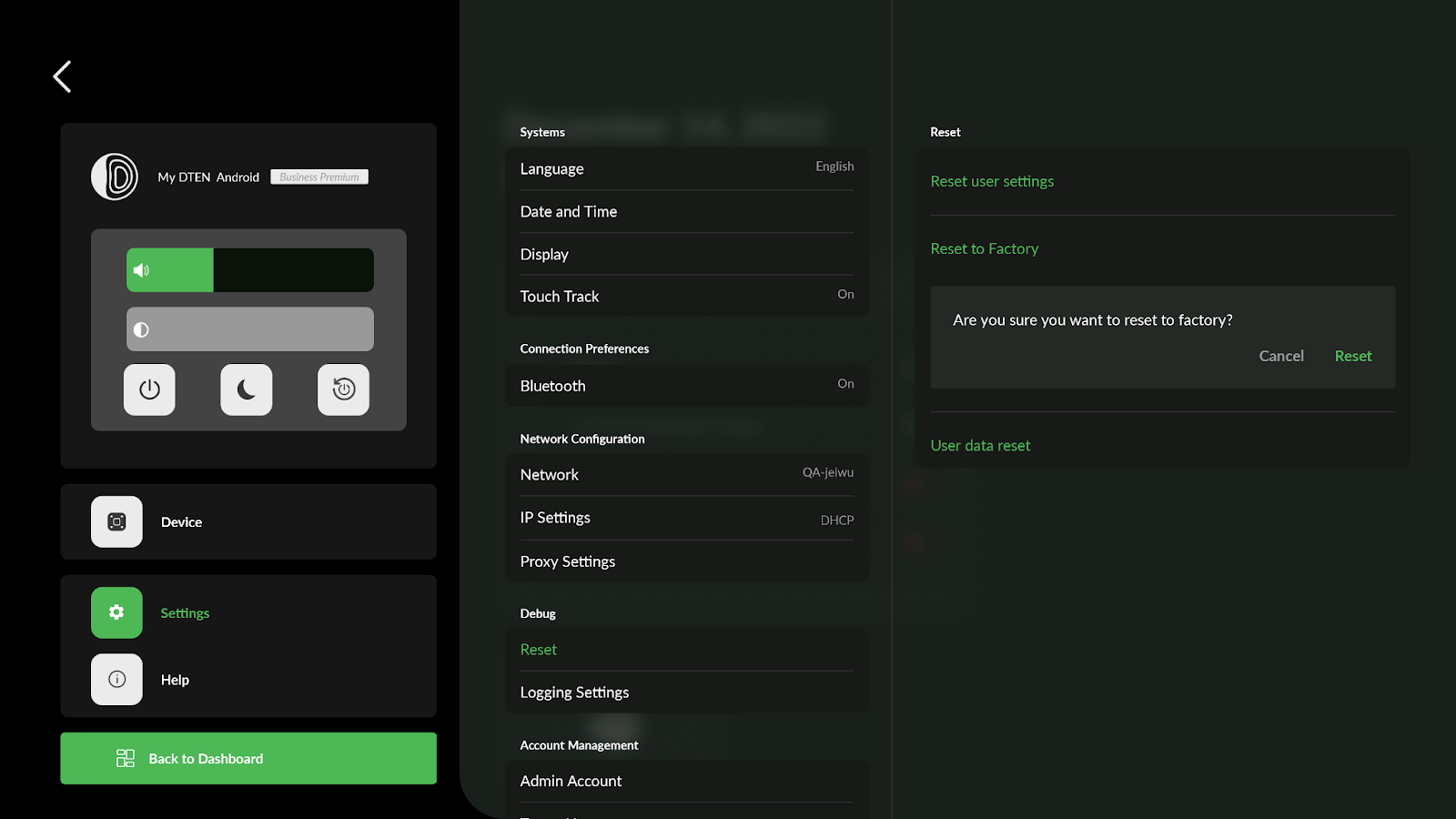
- Factory reset the D7X, which will automatically reset the Mate as well.
- To switch from Zoom to Teams:
- To switch from Teams to Zoom:
- Factory reset both the D7X and the Mate.
D7X Android
DTEN Mate
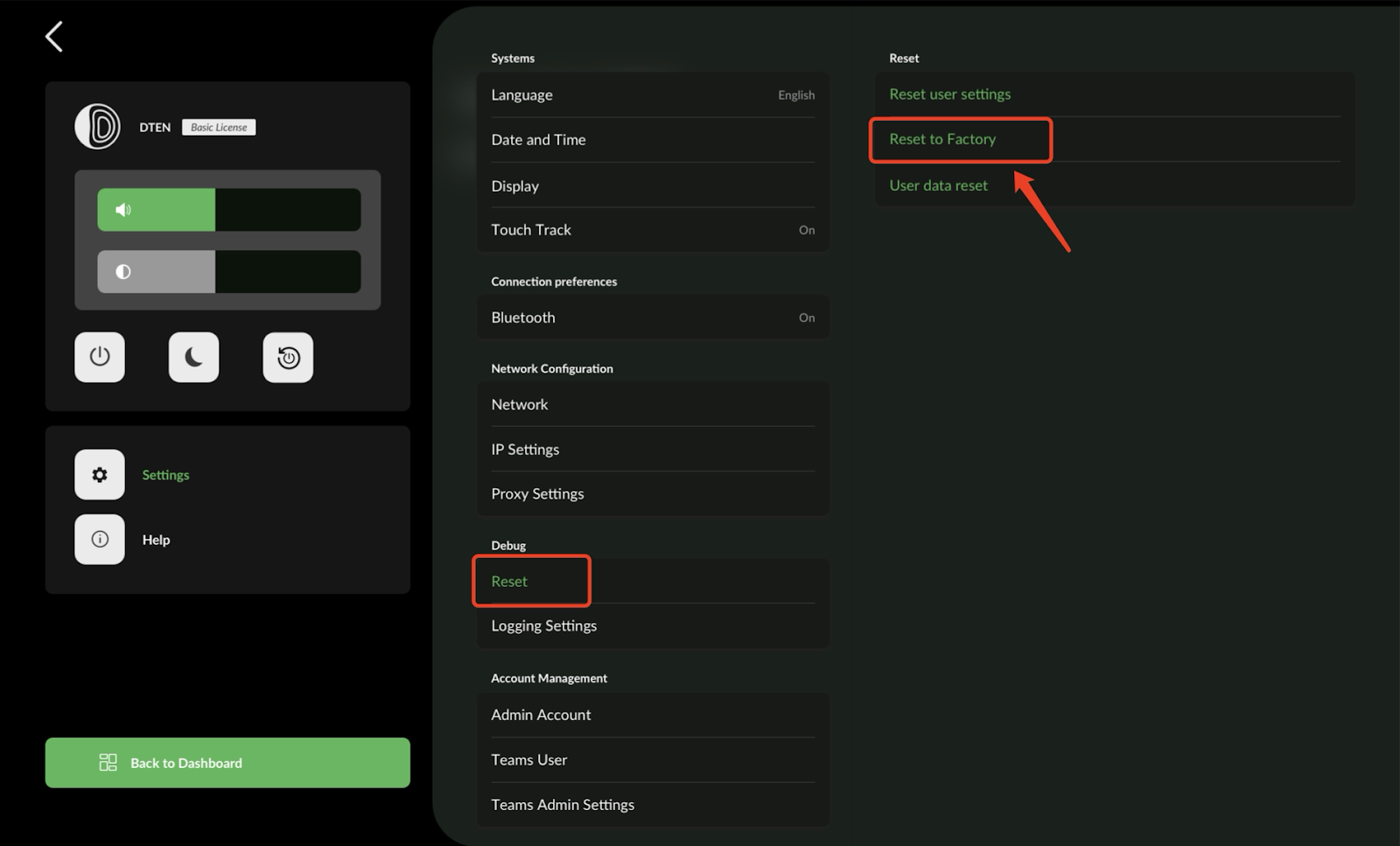
- After pairing the Mate with the D7X again, it automatically switches from Teams Touch Console to ZRC.
If you have additional questions or need to contact DTEN Support, please refer to this DTEN Knowledge Base article for more details: HERE.