


DTEN D7X Android – How to Perform a Forced Factory Reset

Overview
Your DTEN D7X Android device is unresponsive or experiencing system malfunctions. This article will provide instructions on how to perform a forced factory reset to the DTEN D7X Android device.
Supporting Products
- DTEN D7X Android Edition
Solution:
How to Perform a Forced Factory Reset:
- Connect the Power Cord: Ensure the power cord is securely connected to the device.
- Press and Hold the Factory Reset Button: Locate the Factory Reset button on the device’s OPS and press and hold it for more than 10 seconds.
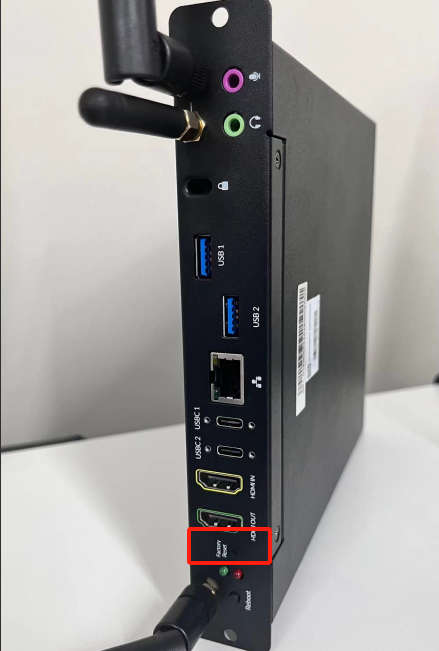
- Wait for the Device to Reboot: The device will automatically restart and begin the factory reset process.
Important Notes:
- Data Loss: A forced factory reset will erase all data on your device, including settings, apps, and user data. Please back up any important data before proceeding.
- Reset Time: The reset process may take several minutes. Please be patient.
- Post-Reset Configuration: After the reset, you will need to reconfigure your device, including connecting to Wi-Fi and setting up your accounts.
If you encounter any problems during the forced factory reset process, please contact DTEN support team [How to contact DTEN Support] for further assistance.
Still need help?
Open an Orbit ticket — your device details are filled in for you.
Was this article helpful?
Thanks for the feedback.