


DTEN – How to Disable Sleep Mode in DTEN ME & DTEN ME Pro Systems

Overview
This article will provide instructions on how to disable the sleep mode in DTEN ME and DTEN ME Pro systems.
Supporting Products
- DTEN ME Pro
- DTEN ME
Solution:
Please follow the steps below to troubleshoot and resolve this issue:
Step 1: Check Zoom Portal Settings
- Log in to the Zoom Portal: Access your Zoom account’s administrative portal.
- Navigate to Room Management: Locate the “Room Management” section.
- Select Zoom Rooms: Click on “Zoom Rooms” to manage your device settings.
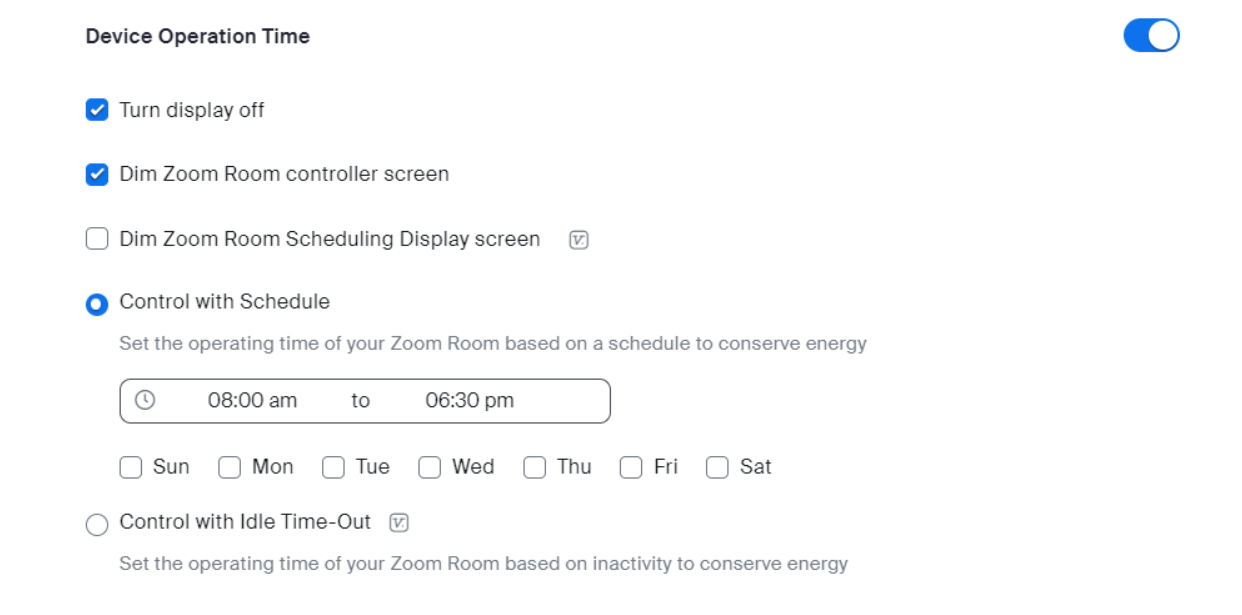
- Check Device Operation Time: Look for the “Device Operation Time” setting.
- Disable or Adjust: If this setting is enabled, disable it or adjust the idle timeout to your desired duration.
Step 2: Adjust Device Settings
Option 1: Using the Dashboard Screen
- Access the Dashboard: Enter the device’s Dashboard page.
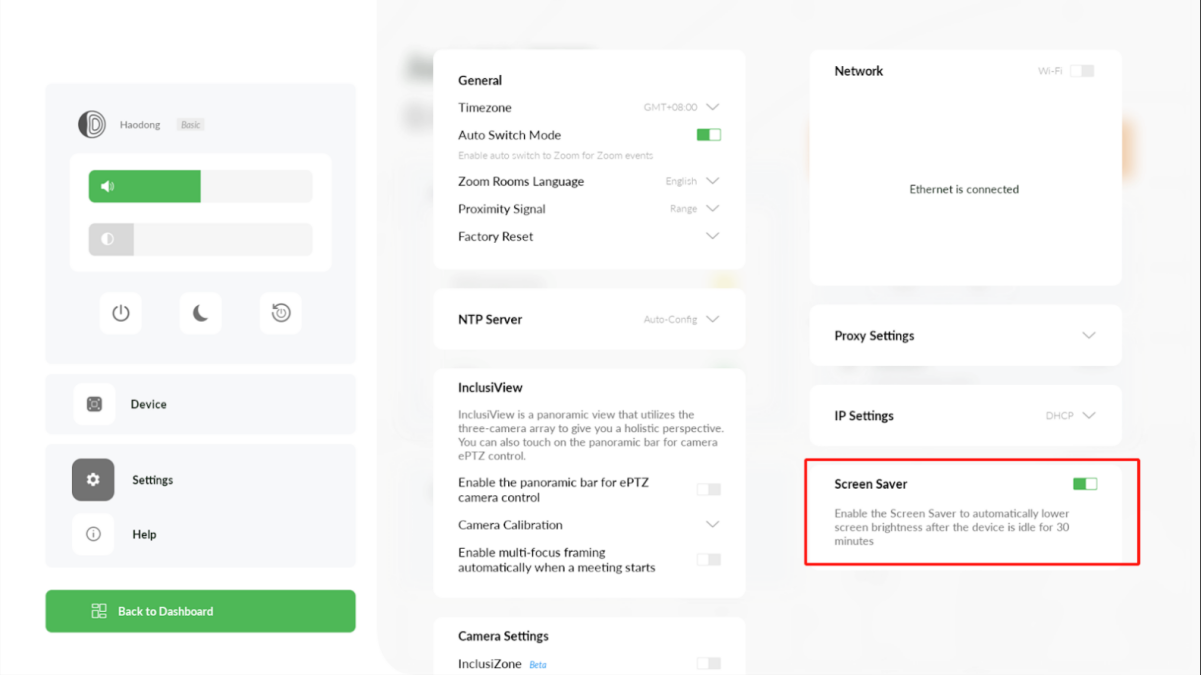
- Select Settings: Tap on the “Settings” icon.
- Locate Screen Saver: Locate the Screen Saver option in the bottom right corner.
- Disable Screen Saver: Turn off the screen saver function.
Option 2: Using the Orbit Settings Screen:
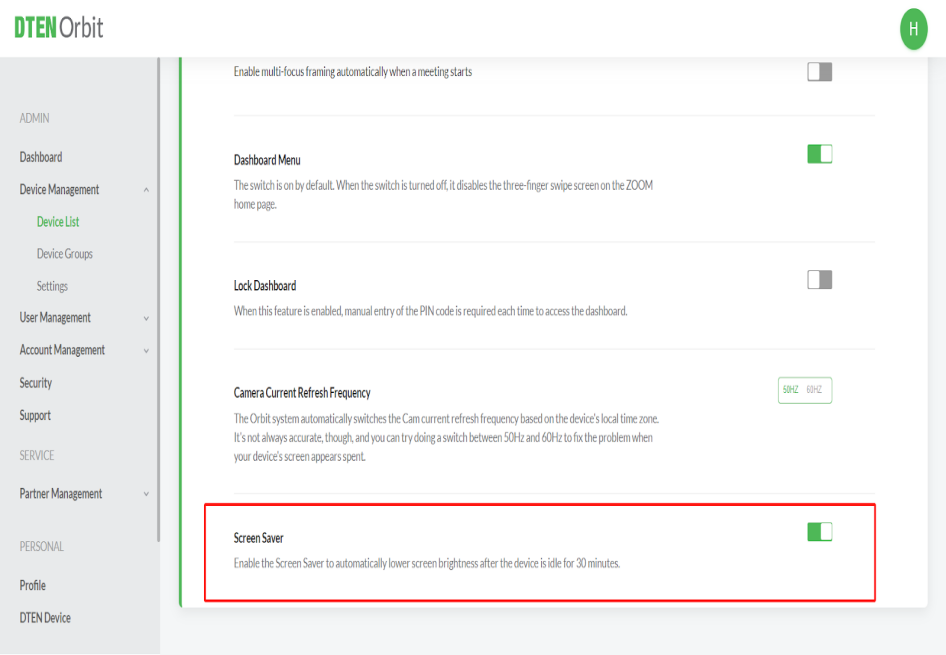
- Locate Screen Saver: Find the “Screen Saver” option in the settings menu.
- Disable Screen Saver: Turn off the screen saver function.
If you encounter any problems during the forced factory reset process, please contact DTEN support team [How to contact DTEN Support] for further assistance.
Still need help?
Open an Orbit ticket — your device details are filled in for you.
Was this article helpful?
Thanks for the feedback.