


DTEN D7 55 & 75 Quick Start Guide
Connection to the Internet
When the unit is turned on, your DTEN D7 unit will automatically display in the pre-installed Zoom Rooms application. After plugging the unit in, the system will walk you through the setup process.
Starting Zoom Room
Once the unit is turned on, it will automatically start in the Zoom Room.
To Sign in to your Zoom Room account you can log-in with your email or by activation code.
To check the current Zoom Room version, tap an empty field on the screen and tap the gear icon at the bottom right
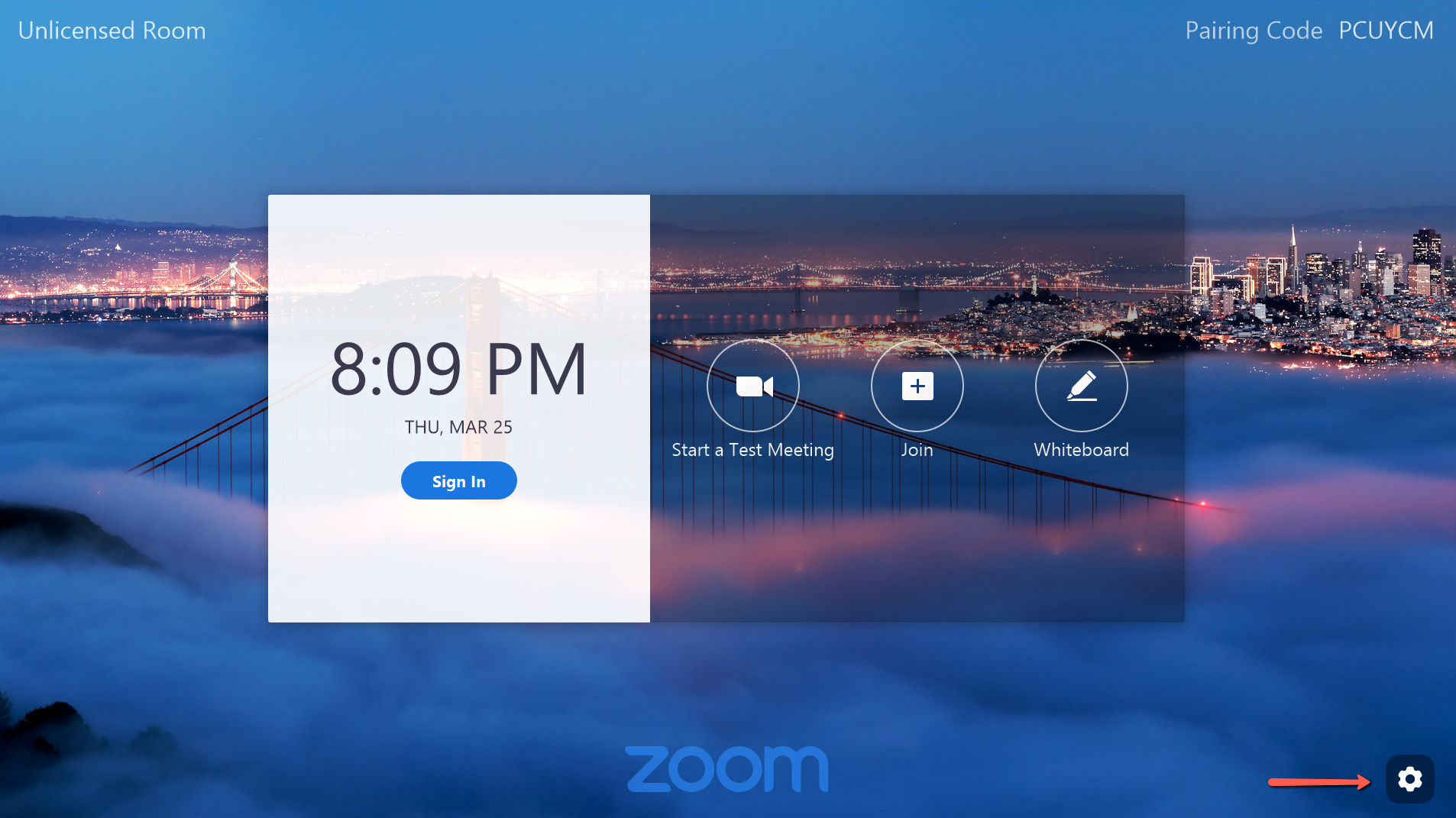
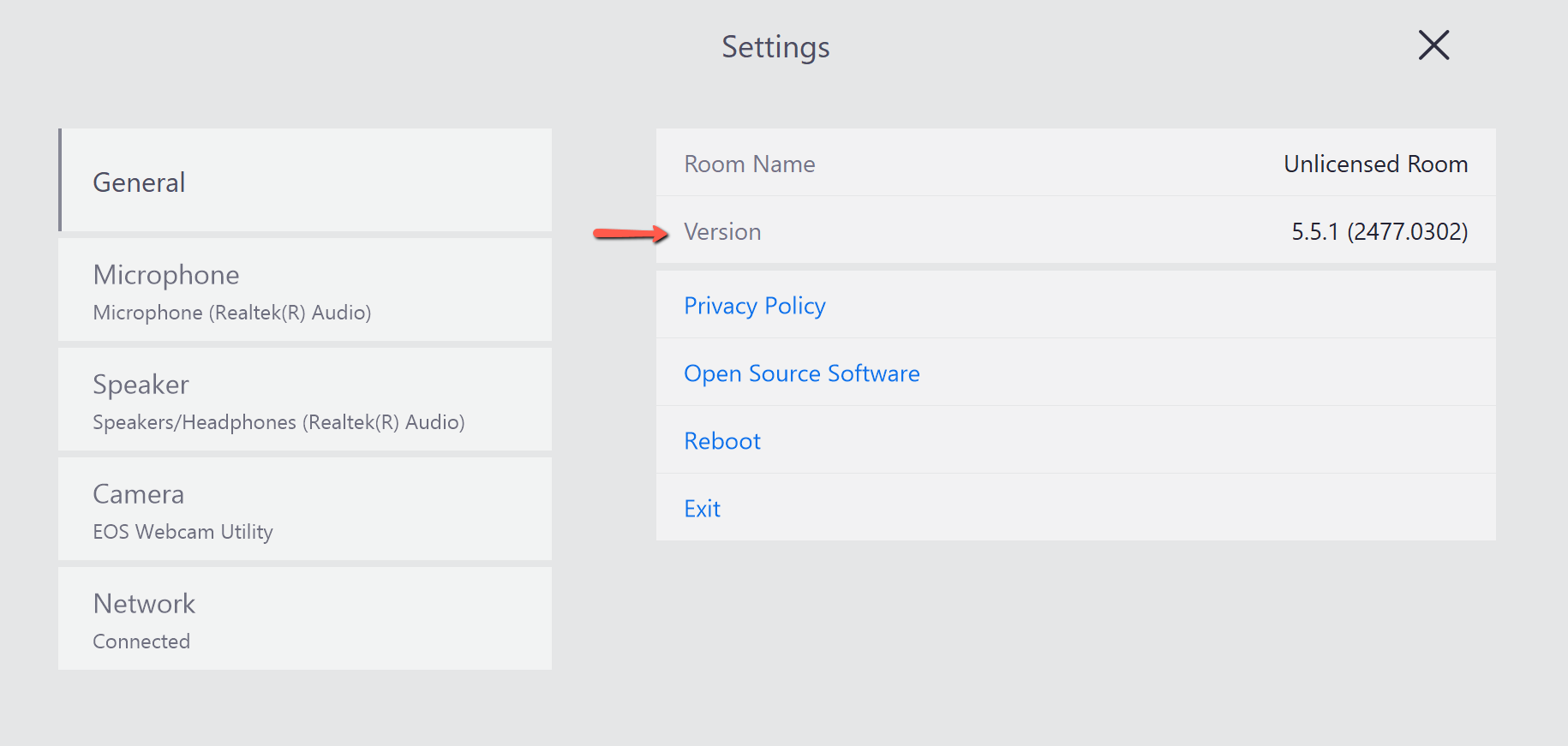
Go to https://zoom.us/download to see if your Zoom Room is up to date.
How to Start Zoom Room Meeting
Once you have logged into your Zoom account, you will see the following screen:
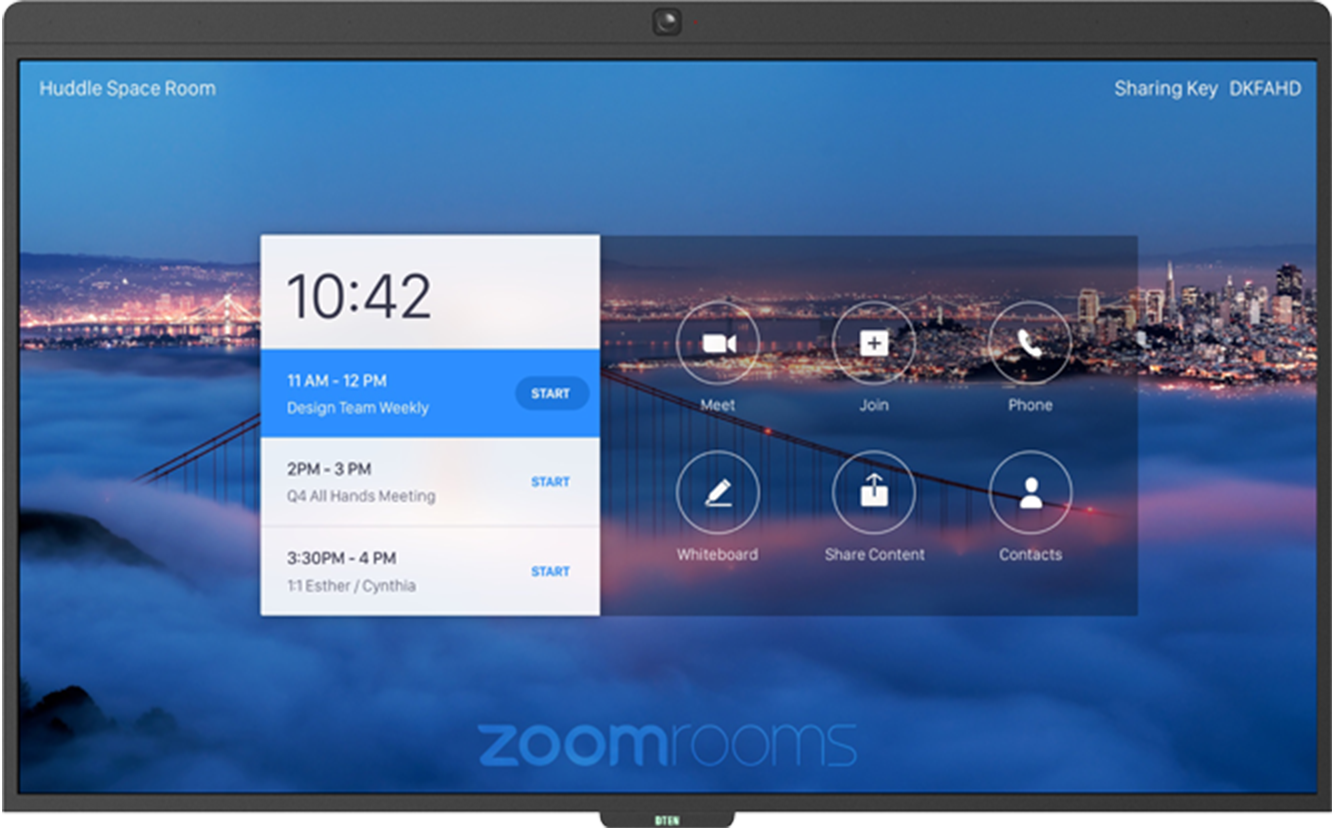
Calendar – Display schedule Zoom Meetings, click Start to begin scheduled meeting
Meeting – Start a Zoom Meeting
Join – Join Zoom Meeting
Phone – Make a phone call
Whiteboard – Start a whiteboard session
Share Contact – Start screen share through Zoom
Contact – Displays Zoom Contact List
Testing Microphone
To test the microphone and speaker quality, The D7 mic array should be collecting loud and clear audio with no noticeable echo.
In the Microphone tab, select the DTEN Mic Array 7 as the output source, pressTest Microphone to test the Audio quality. If you hear severe audio echo problems, please enable Software Audio Processing and Reduce excessive sound reverberation.
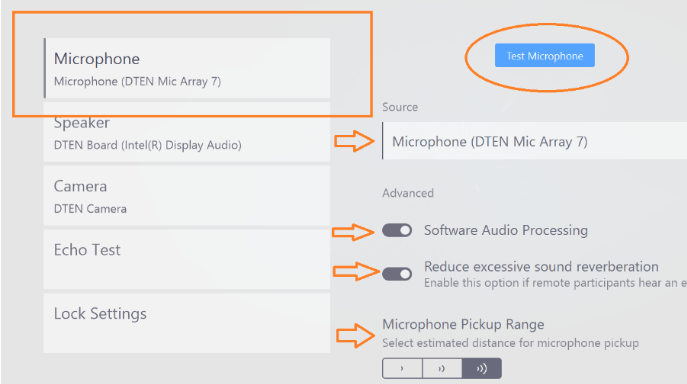
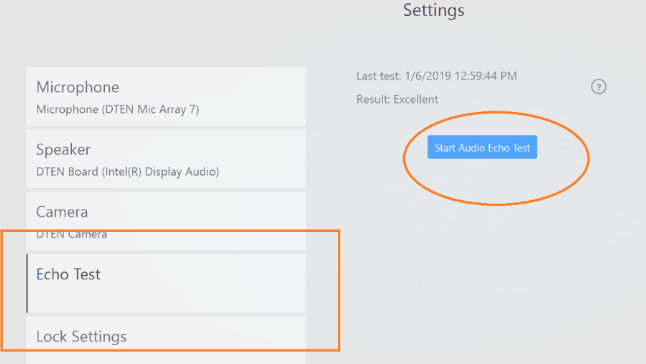
If you’re having an echo during testing, go to Settings, Click the Echo Test tab, select Start Audio Echo Test.
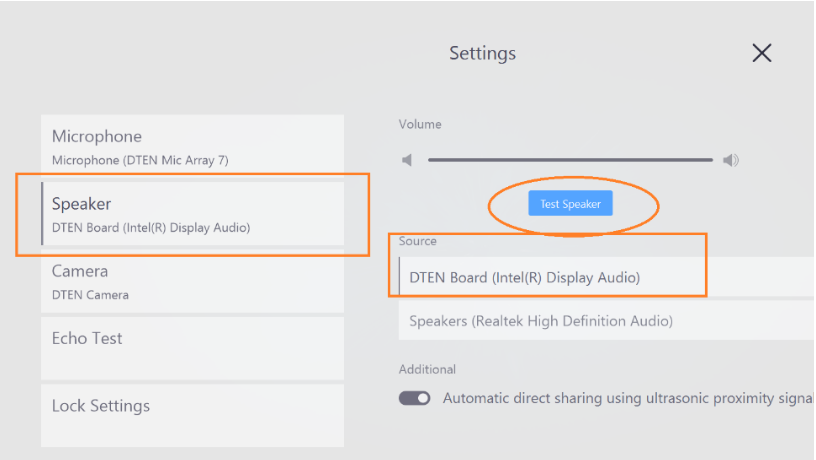
Select the Speaker tab, and select DTEN Board as default output audio source, Tap Test Speaker button to test the quality of the speaker.
If you find anything abnormal, please contact our customer success team at support@dten.com.