


DTEN – Install Poly Virtual USB
Overview
This article describes how to prepare your DTEN D7 for the Polycom Trio (8500 & 8800) virtual USB service. We must first login to the correct Windows User to install the Virtual USB Service
Log into Windows
Method 1
- Plugin the Windows-layout wired keyboard onto the PC’s blue USB port (the rear, top-left port).
- Press Ctrl + Alt + Delete and you will see the following screen and you will be brought to the Windows lock screen.
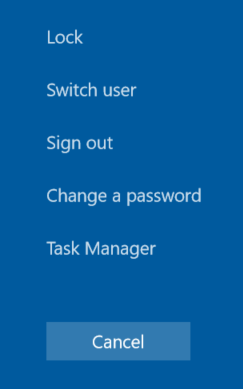
- Click on “Sign Out” and select “Zoom Admin”
Note: Zoom Rooms will start one more time. To exit Zoom Rooms, tap on the screen and press “Exit” on the bottom left.
The password the account is:
- ZoomAdmin (access to the PC) – Zoom1234
Method 2
- Touch the D7 display and click on the Settings button

- In the Settings view, select the General tab on the left side
- Select the Windows Settings option to exit D7 into Windows Interface
- Select “Zoom Admin” → enter Zoom1234 to enter the Window Interface
1. Download and install Polycoms Virtual USB Software for your Trio using the browser on your DTEN. Please find download guide HERE.
Please note: If you experience user permission issues, please disable Windows UAC.
Additionally, the Polycom installation will add the application to the Windows Startup list. You can prevent the application from starting again/throwing an error message by opening the Task Manager > Startup > Right-click on Poly Virtual USB Connector for Zoom Rooms Application > Disable
2. Follow the Start Poly Virtual USB before Windows Logon article to make sure that the Poly Microphone and Speaker are available as input/output devices in Zoom Rooms.
After this, please read Setting Up the Polycom Trio as a Zoom Rooms Controller
Please also read Integrating Polycom Trio™ Systems with Zoom Rooms
If you have additional questions or need to contact DTEN Support, please refer to this DTEN Knowledge Base article for more details: HERE.